 Emily CarterData Recovery
To recover deleted photos from an SD card in Windows, stop using the storage device immediately and save any recovered files only to a different drive. First, check for copies you created earlier. If none exist, scan the card itself with Fionn Data Recovery or Windows File Recovery. No method guarantees a result: the outcome depends on the card’s condition and whether the deleted data has been overwritten.
What to do immediately after deleting photos
Turn off the camera, remove the card, and, if a full-size SD card has a switch, set it to write-protection mode. Connect the storage device to your computer through a working card reader. These actions do not restore files, but they help preserve the card’s current state before recovery.
- Disconnect the card from the device where the photos were deleted.
- Connect it to a computer running Windows 10 or Windows 11.
- Open File Explorer and note the card’s drive letter, such as
E:. - Prepare another internal or external drive with enough free space.
If Windows asks you to format the card, decline. If the storage device repeatedly disappears, shows an incorrect capacity, overheats, or is not visible in Disk Management, stop software scanning. For valuable photos, it is more sensible to contact a data recovery laboratory.
How to choose a recovery method
Your choice depends on whether a copy exists, whether Windows detects the card reliably, and whether you are comfortable using commands. Recovering from a copy does not scan the original storage device. The other two methods search for data directly on the card.
| Method | Best for | Process effectiveness | User involvement |
|---|---|---|---|
| Existing copy | Photos were previously imported or backed up | High, if a copy exists | Low |
| Fionn Data Recovery, recommended option | You need visual scanning, filters, and preview | Multiple search modes | Moderate |
| Windows File Recovery | The card is readable and you are ready to enter commands | Depends on the storage device’s condition and overwriting | High |
Method 1: Recover photos from an existing copy
When to use it: the photos were imported to a computer at least once, copied to an external drive, or synced with a cloud service. This is the fastest method because the original card remains untouched.
- Open the Pictures and Photos folders, the camera import folder, and photo editor folders on your computer.
- Search by image extensions, such as
*.jpg,*.jpeg,*.png, or your camera’s known RAW format. - Check the Windows Recycle Bin and the cloud service recycle bin if the required folder was synced before deletion.
- Connect the backup drive and locate the saved folder manually.
- If File History was configured beforehand, open it in Control Panel and select Restore personal files.
- Copy the photos you find to a new folder on a working drive.
Check the result: open several older and newer photos, then compare their dates, resolution, and file size with the expected values.
Method 2: Recover photos with Fionn Data Recovery
When to use it: no copy exists, the card is reliably detected by the computer, and a graphical interface is more convenient than the command line. This is the recommended option for finding photos: the program supports SD cards and camera cards, fast, deep, and RAW search, filtering, and preview. Scanning is performed locally in read-only mode without uploading files.
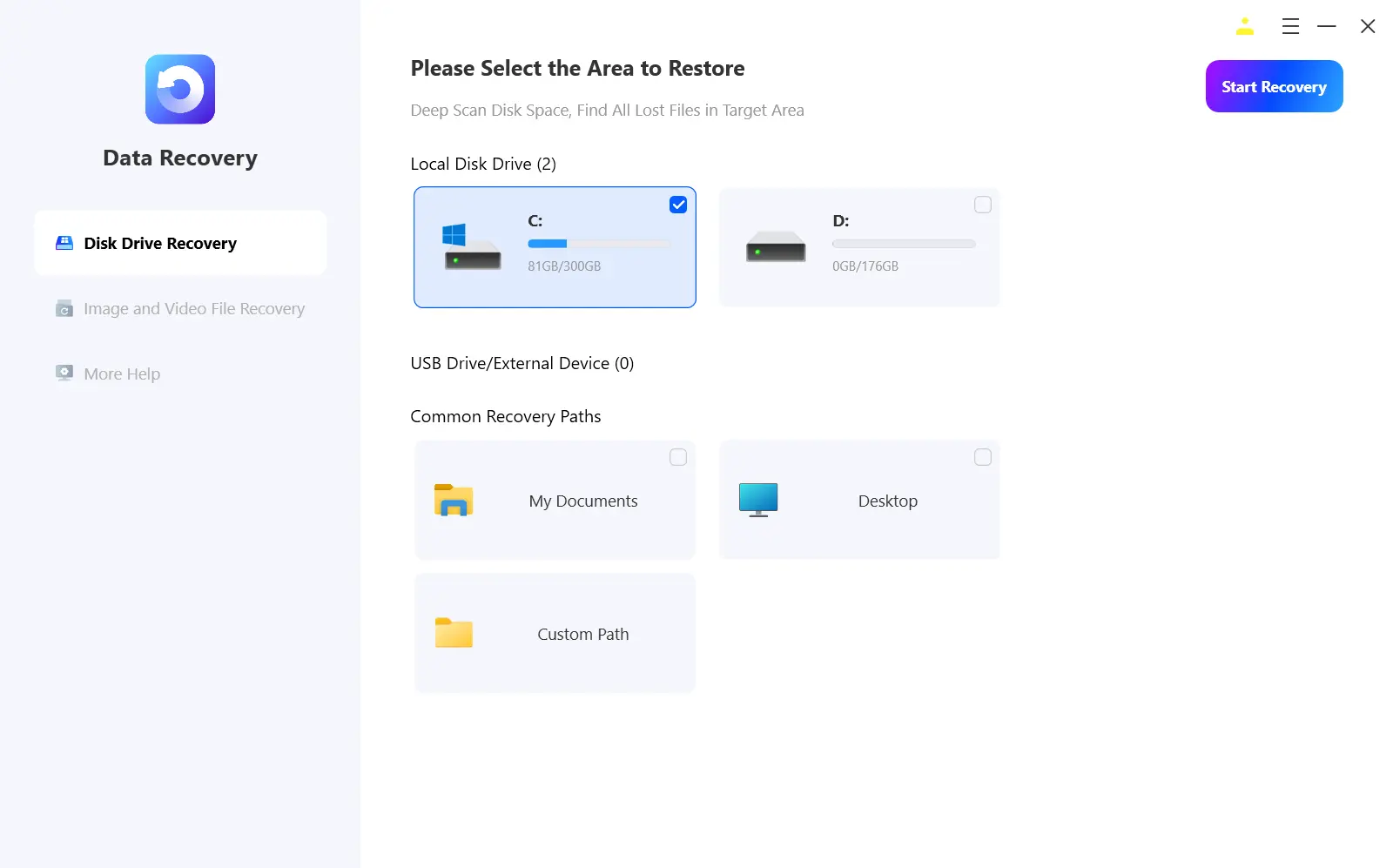
- Launch Fionn Data Recovery and select the recovery option for the type of data or storage location you want to recover.
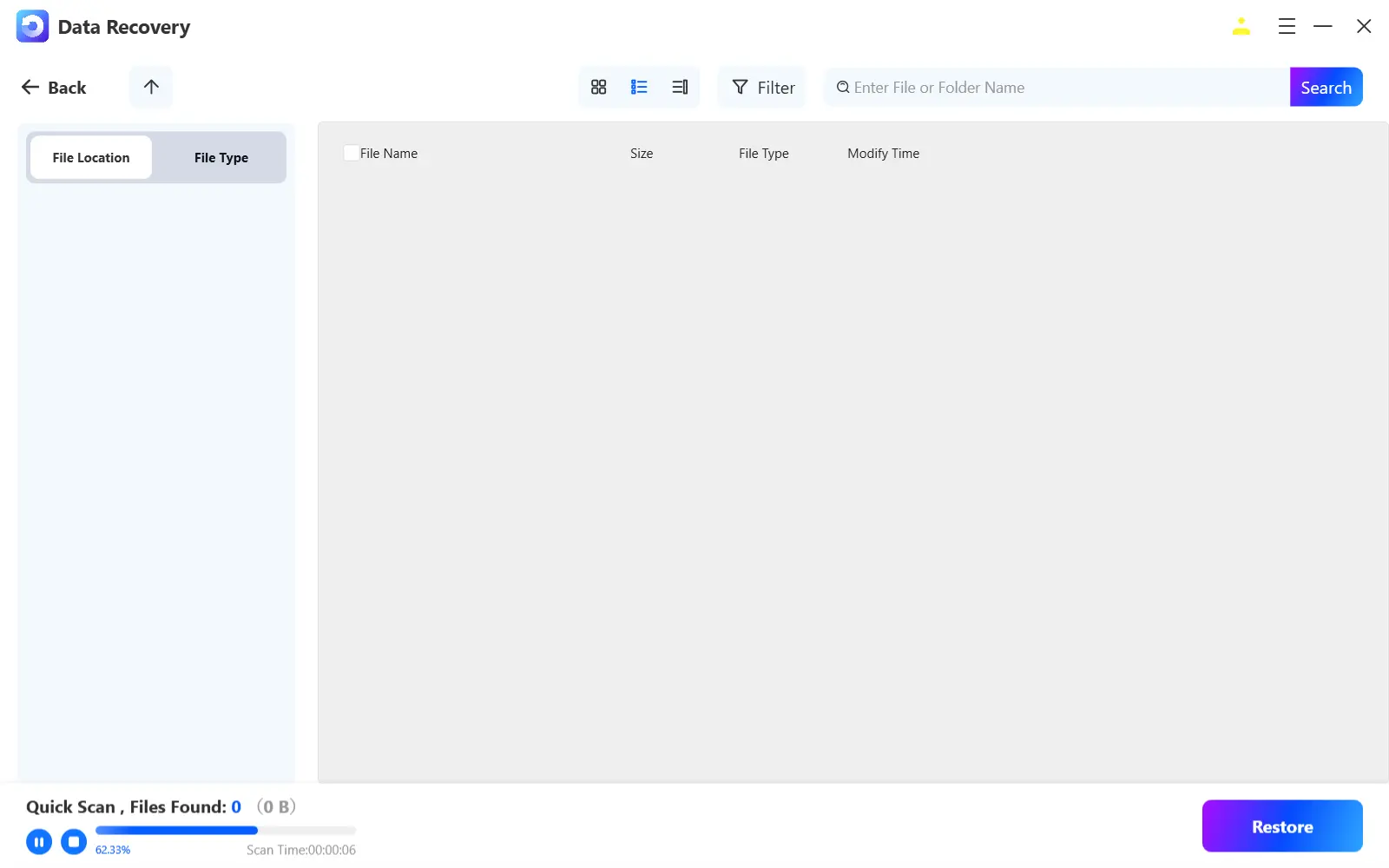
- Start the automatic scan and wait while Fionn Data Recovery searches the selected location for deleted or lost files.
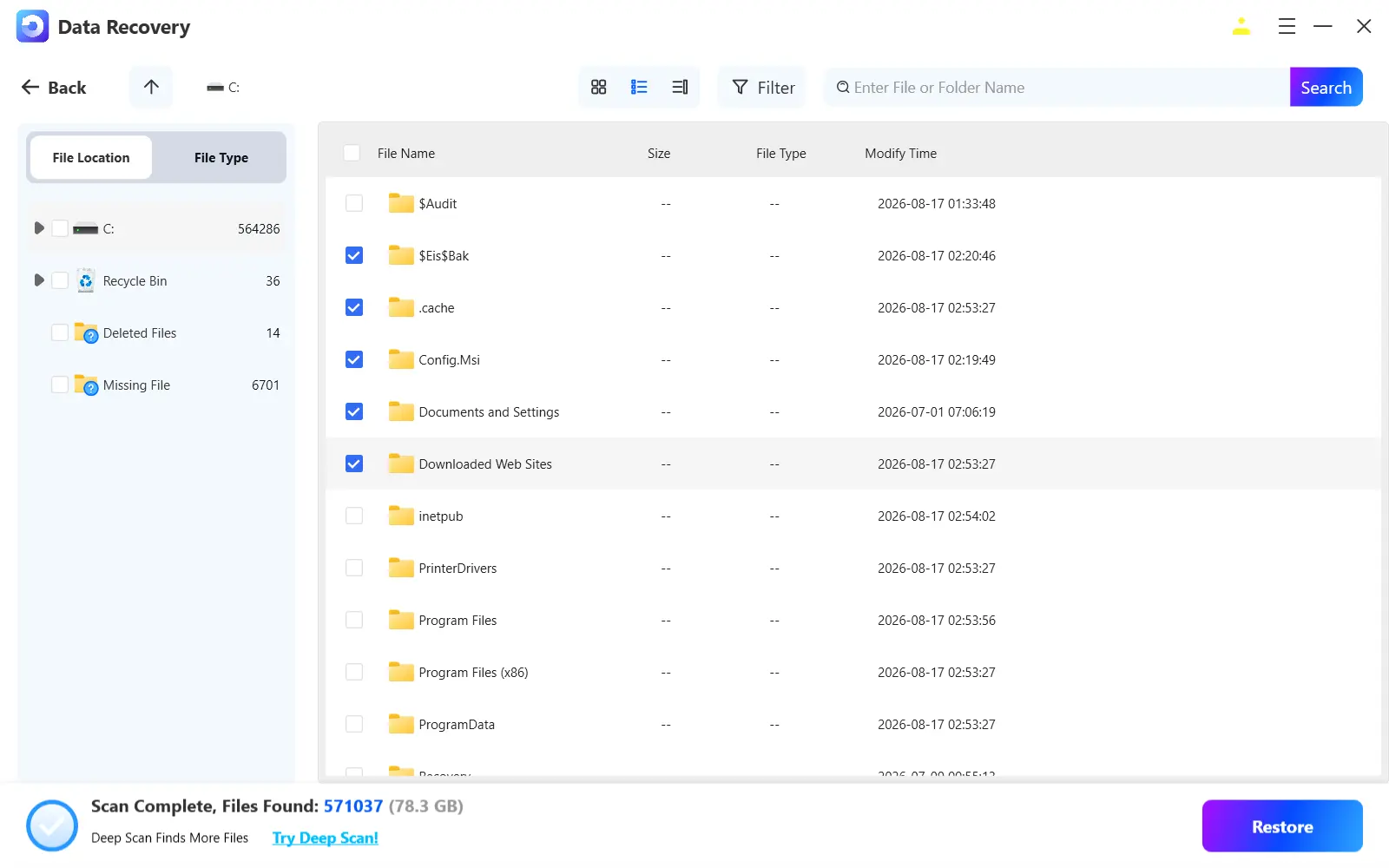
- After the scan finishes, browse the results and preview the files to select the data you want to restore.
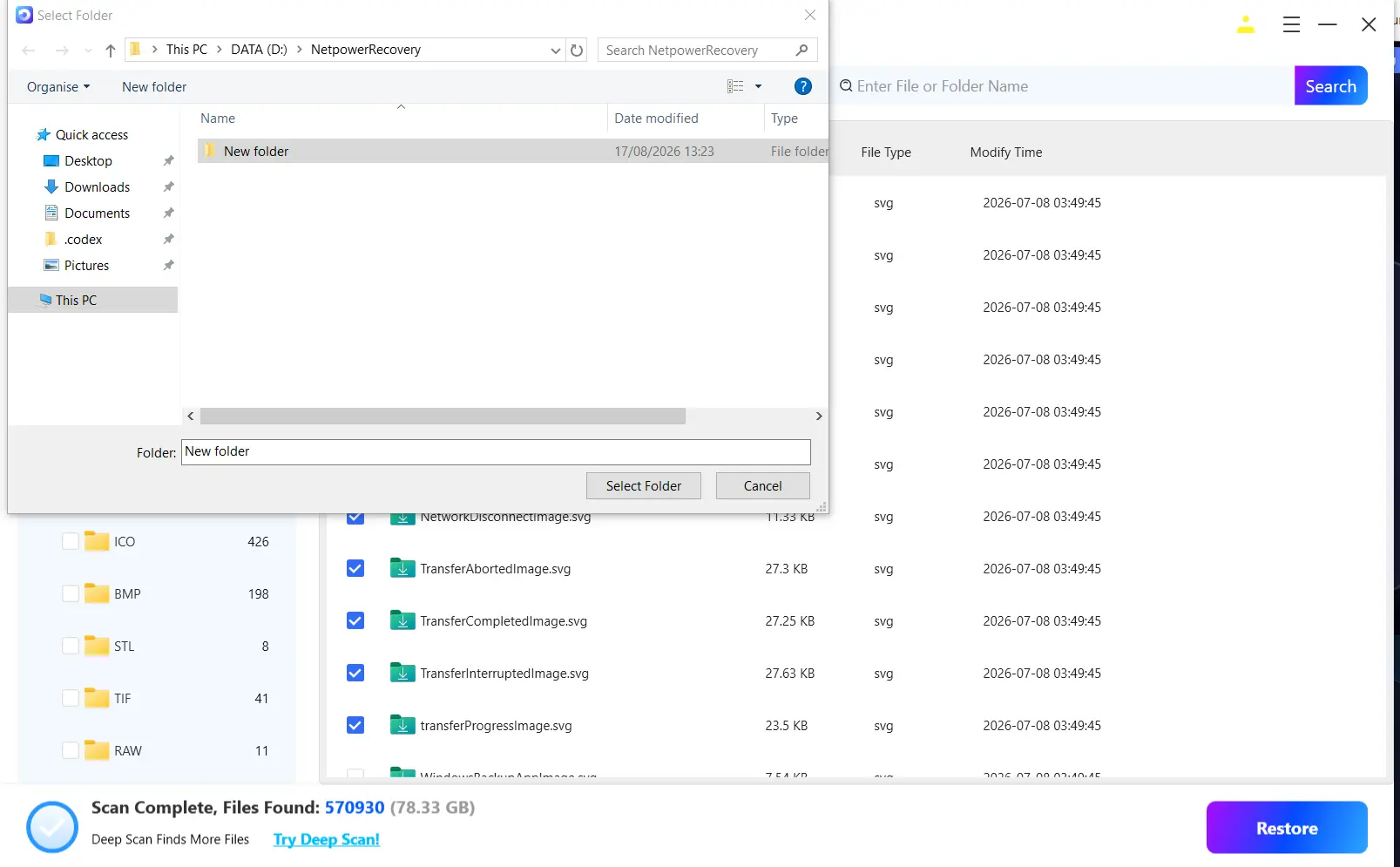
- Select a destination folder to save the recovered files, then start the recovery process.
If the fast search does not find your photos, continue with a deep or RAW signature scan. You can filter results by name, location, type, time, and size. Preview, deep scanning, all file types, and unlimited recovery are VIP features.
Check the result: first assess photos in the preview window. After recovery, open the saved files from the destination drive and view them at full size.
Method 3: How to recover deleted photos from a memory card with Windows File Recovery
When to use it: no backup exists, Windows reliably recognizes the card, and you are comfortable working with the command line. According to Microsoft’s official Windows File Recovery guide, the source and destination must be on different drives. For FAT and exFAT, which are common on memory cards, use Extensive mode.
- Install Windows File Recovery from the Microsoft Store.
- Connect a separate storage device for saving results.
- Confirm the drive letters in File Explorer, for example, the card
E:and the destination driveD:. - Run Windows File Recovery as an administrator.
- Enter the command with the required filters:
winfr E: D: /extensive /n *.jpg /n *.jpeg /n *.png - Confirm the operation with
Y. - After completion, open a folder on the destination drive named like
Recovery_дата-время.
Replace the drive letters with your own. If the camera used RAW, add a filter for the confirmed extension used by that camera. A narrow filter speeds up result review, but an incorrectly specified extension will exclude needed files.
Check the result: open the photos and zoom to 100%. Gray areas, stripes, cropped sections, or a decoding error mean the content was not recovered completely.
How to check recovered photos
A filename or thumbnail alone does not prove that a photo is intact. Create a separate folder, sort results by type, date, and size, then open a sample from different periods. Check both JPEG and RAW files if your camera saved both formats.
- View important photos at full size.
- Check that files have a nonzero size.
- Copy working results to one more physical storage device.
- Do not erase the card until you have checked two independent copies.
- If errors recur after formatting in the camera, replace the card.
Common mistakes
- Saving results to the original card. New files can overwrite photos that have not yet been found.
- Formatting when Windows asks. This changes the storage device’s state and is not required before recovery.
- Running a disk check or repair. This operation addresses a file-system issue rather than extracting deleted data.
- Judging only by thumbnails. An embedded thumbnail may display even when the main image is damaged.
- Scanning an unstable card repeatedly. If there is a hardware fault, additional access to the storage device is undesirable.
Conclusion
Start with an existing copy: it is the fastest path and does not affect the card. If no copy exists, use Fionn Data Recovery for visual searching and preview; Windows File Recovery is suitable if you are confident with commands. Always save found files to another drive and check photos at full size rather than by thumbnail. If the card disconnects, is not detected, or contains irreplaceable material, stop attempting recovery yourself and contact specialists.
Frequently asked questions
Can I recover photos from a memory card after formatting?
Sometimes, yes, if nothing has been written to the card after formatting. Stop using the storage device. In Fionn Data Recovery, you can move from a fast search to a deep or RAW scan; in Windows File Recovery, use Extensive mode for FAT or exFAT.
How can I recover data from a memory card if Windows asks me to format it?
Decline formatting and check the card through another working port or card reader. If the storage device is detected reliably, try scanning it. If the device disappears, shows the wrong capacity, or overheats, stop and consider professional recovery.
Can I recover deleted files from a memory card without software?
Yes, if a previously imported, backed-up, or cloud copy exists. When no copy exists, you need a tool that analyzes the storage device itself, such as Windows File Recovery or data recovery software.
Why can’t I save recovered photos to the same SD card?
Saving results can occupy areas where deleted data still remains. Therefore, the original card and the destination folder must be on different physical storage devices.
Why won’t a found photo open?
Part of the content may have been overwritten, or the tool may have found only a file fragment or its metadata entry. Try another scan mode and check with a different viewer, but do not edit the original recovered file.
Start safe recovery
Connect the card to Windows through a working card reader, prepare another drive, and choose the appropriate method. If you need filtering and file verification before saving, start a scan in Fionn Data Recovery.


