 Emily CarterPrinter Drivers
Introduction
If your HP LaserJet M1212nf MFP is not detected, shows a driver problem, or will not print, first confirm the full model name, your Windows version, and whether the printer is connected by USB or network. Then install or repair the driver and finish by printing a Windows test page. Fionn Printer Driver can scan the printer environment, identify available driver issues, and start the suggested installation or repair.
The scan result is not proof that printing works. A successful Windows test page is the practical check that the printer, driver, and current connection can produce output.
Before You Start
- Check the model label or the existing printer entry and keep the complete name: HP LaserJet M1212nf MFP.
- Note whether the printer uses a USB cable or a network connection. This helps distinguish a driver issue from a connection issue.
- Keep the printer connected and powered on while checking for a driver.
Quick Method Comparison
| Method | Best For | What to Check |
|---|---|---|
| HP official support | Selecting a driver or setup option for the exact M1212nf model | Check the model, Windows version, and the options HP actually offers |
| Windows Add device | Adding a powered-on USB or network printer that Windows can detect | Confirm the correct device appears, then print a test page |
| Fionn Printer Driver | Scanning for driver and common printer issues | Review the suggested action; a completed repair still needs a test page |
Use the HP route when you need to choose a model-specific installation option. Try Windows discovery when the printer is connected but not yet listed. Use Fionn for a guided scan and suggested repair. Device Manager is a conditional troubleshooting step, not the default installation route.
Find the HP LaserJet M1212nf MFP Driver on HP Official Support
Start here when you need a driver or setup option for this exact model. HP's M1212nf driver support page is the manufacturer entry point. Availability depends on the operating system selected there; do not use a package just because its name looks similar.
- Confirm that the printer label says HP LaserJet M1212nf MFP or the matching HP LaserJet Pro M1212nf model, rather than another M1210-series model.
- Open the HP support page and select your actual Windows version and system architecture if the page asks for them.
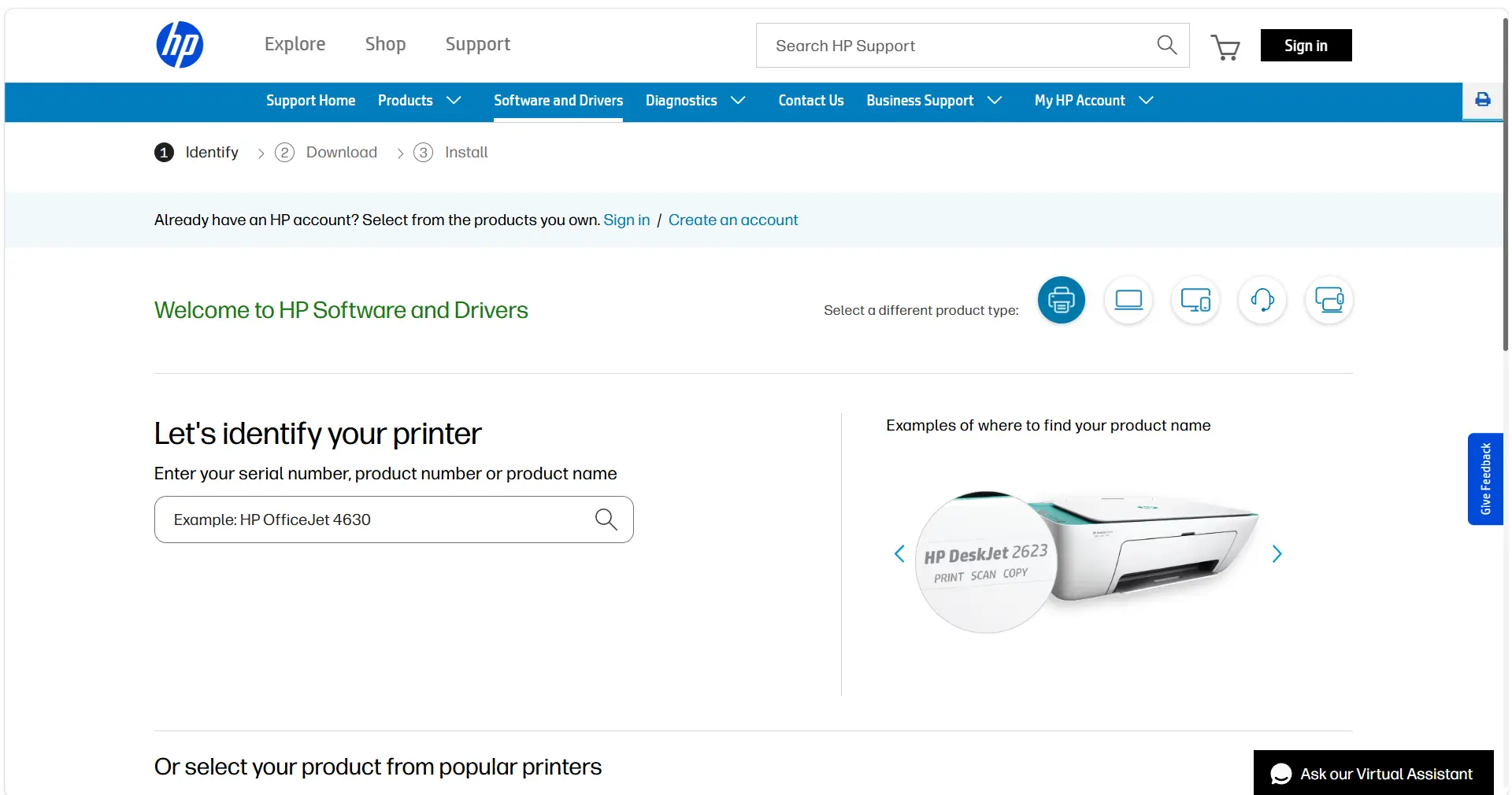
- Review the options HP displays for that model and system. Download an offered driver or setup package only if HP explicitly lists it for your selection; if none is listed, do not substitute a different model's package.
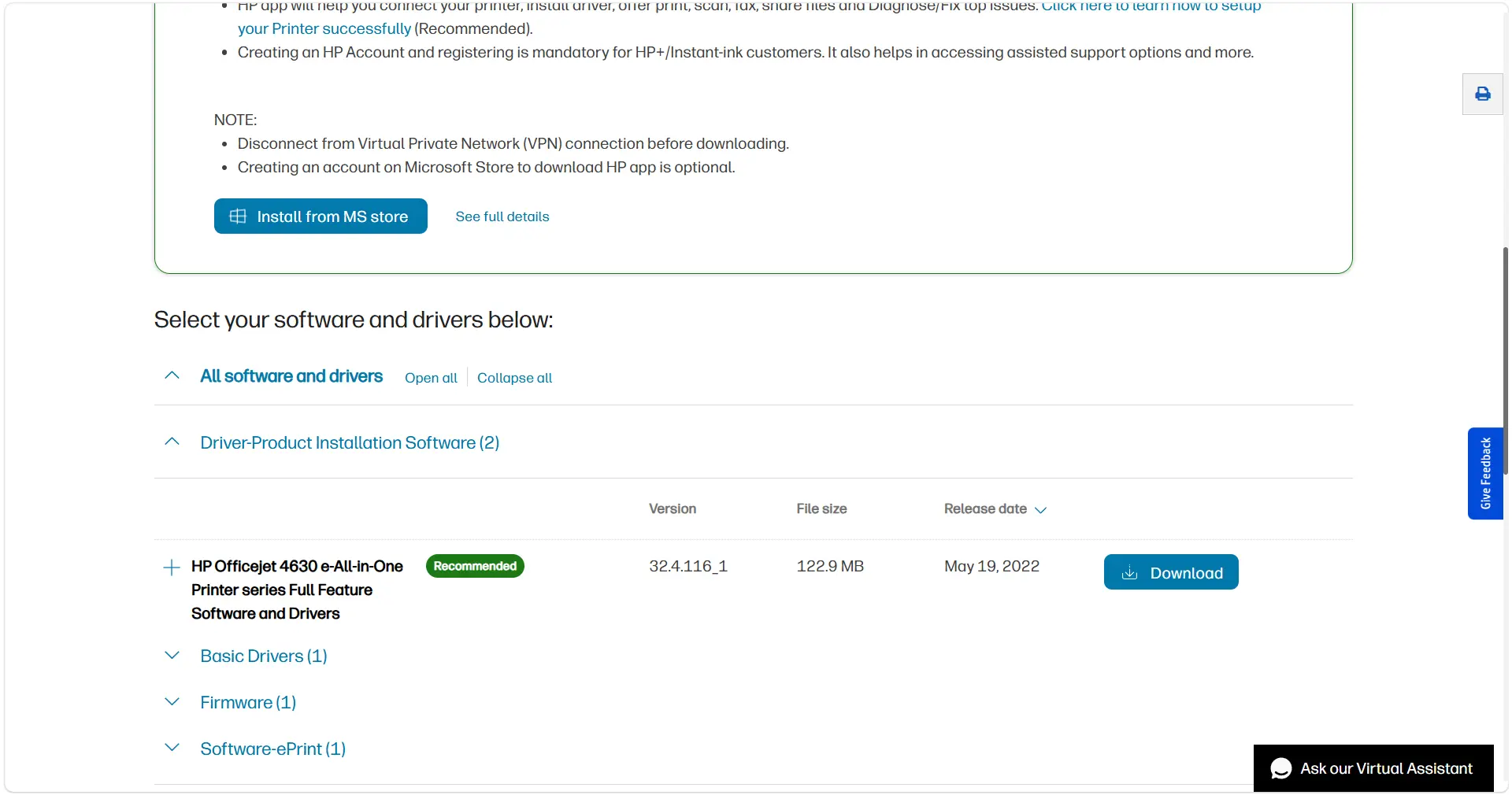
- Follow the instructions shown with the selected HP option, keeping your USB or network connection type in mind. After setup, confirm the printer appears in Windows and print a Windows test page.
Add the Printer in Windows Settings
Use this method when the printer is powered on and connected but is not yet listed in Windows. Microsoft's Add or install a printer in Windows guide covers local and network discovery. Adding the device does not guarantee that every model-specific driver or feature is available.
- For USB, connect the printer to the PC and turn it on. For a network connection, connect the printer to the network used by the PC and turn it on.
- In Windows 11, open Start > Settings > Bluetooth & devices > Printers & scanners . In Windows 10, open Start > Settings > Devices > Printers & scanners .
- Check whether the HP LaserJet M1212nf is already listed. If not, select
Add device
(or
Add a printer or scanner
in Windows 10) and wait for discovery.add
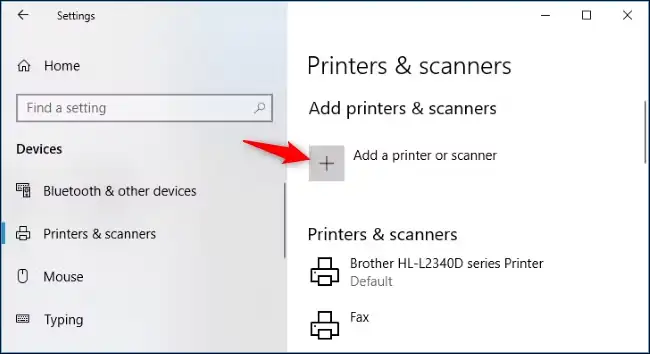
- Select the matching printer and complete the prompts. If it is not found, use Windows' manual-add option and follow its prompts rather than selecting a similarly named device.
- Open the added printer in Printers & scanners and print a Windows test page. If discovery or the test fails, check the USB or network connection and then the model-specific HP support route.
Install the HP LaserJet M1212nf MFP Driver with Fionn Printer Driver
Use this approach when you want one guided check for the driver and related printer conditions. Fionn Printer Driver can automatically recognize many mainstream printer brands and models, or let you enter a brand or model to select a driver. It can also check the Windows Printer Service, ports, and queued jobs.
- Launch Fionn Printer Driver and click Scan Now to scan your computer for printer drivers and related issues.

- Wait while Fionn Printer Driver scans your system for installed printers, drivers, and common printer issues.

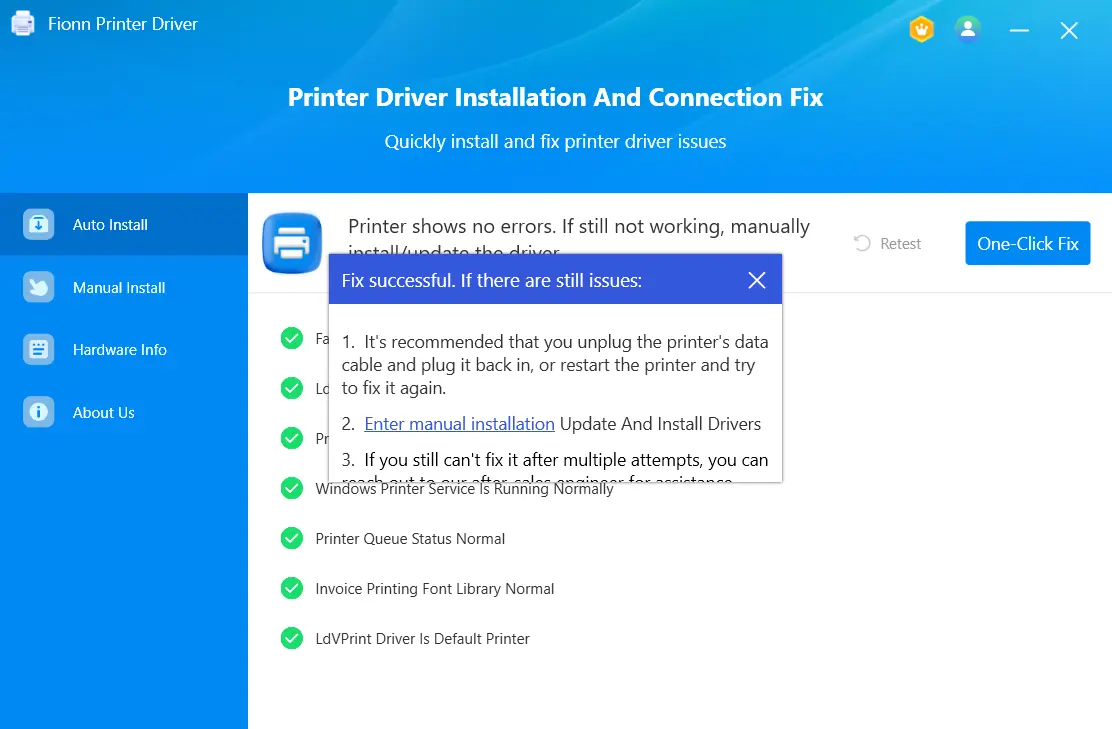
- After the scan finishes, review the detected driver issue, then click One-Click Fix to start the suggested installation or repair.

- Wait for the operation to finish and review its result. Then print a Windows test page to check whether the printer actually works.
If Printing Still Fails
Match the next check to the symptom. If the printer is not found, recheck the USB or network connection and confirm the full model name. If the driver is reported as unavailable or incompatible, choose a package that explicitly matches your Windows version and architecture.
If the printer is visible but jobs do not print, inspect the print queue, Printer Service status, and printer port.
If Device Manager shows the affected printer with a warning icon, remove only that identified device, then check whether it returns without the warning before printing another test page.
Conclusion
Start by confirming the exact HP LaserJet M1212nf MFP model, Windows version, and connection type. Then use Fionn Printer Driver to scan and apply the suggested driver action, or use a manufacturer package only when it explicitly matches your system. Verify the outcome with a Windows test page. If that page fails, focus next on the connection, print queue, Printer Service, port, or a warning shown for the identified printer.
FAQ
How do I know whether I have the correct HP LaserJet M1212nf MFP driver?
The driver should be selected for the exact printer model and explicitly match your Windows version and system architecture. After installation, confirm the printer is listed correctly and print a Windows test page.
Should I use USB or network information when installing the driver?
Yes. Record the active connection type before installation. A printer that cannot be found may have a USB or network connection issue rather than a driver-only problem.
Can I reinstall the printer from Device Manager?
Use Device Manager only when you can identify the affected printer and it has a warning or corrupted-driver symptom. Remove only that device, check whether it returns without a warning, and then print a test page.
Why does the printer still not work after the repair completes?
A completed repair indicates that the software operation finished; it does not by itself confirm that the printer can print. Print a Windows test page, then check the connection, print queue, Printer Service, and port if the page fails.


