 Emily CarterPrinter Drivers
If the HP LaserJet P1005 driver is missing, the printer is not detected, or it does not print, start by confirming the exact model and your Windows version. Then choose one of three methods: automatic diagnostics, installation from HP’s official source, or adding the device through Windows tools. After each method, print a test page. This distinguishes a successful driver installation from issues with the connection, queue, or printer status.
Fionn Printer Driver can automatically recognize popular printer brands and models, install or restore the driver, and check related printing issues in Windows.
What to prepare before installation
- Make sure the model on the device label is HP LaserJet P1005, not a similar LaserJet series model.
- Connect and turn on the printer before checking the result.
- Check your Windows edition and system type under Settings → System → About. This helps you select a compatible package if you use manual installation.
- Clear any jobs that may remain in the print queue so that an old job does not appear to be an error with the new driver.
Comparison of HP LaserJet P1005 driver installation methods
| Method | Best for | Effectiveness | User effort |
|---|---|---|---|
| Fionn Printer Driver | An unclear cause of failure, or a missing or unavailable driver | High when diagnosing multiple components | Low |
| HP official resource | You need a driver package for an exactly known model | High when the correct operating system is selected | Medium |
| Windows tools | The printer is connected and Windows offers to add the device | Depends on driver availability | Medium |
If the cause is unknown, start with the first method. If you already know that you need a package specifically for the HP LaserJet P1005, use HP’s official resource. The built-in Windows wizard is convenient when the computer can already see the device.
Method 1: Fix the problem with Fionn Printer Driver
When to use it: Windows reports that the driver is unavailable, the printer does not print, or it is unclear whether the issue involves the driver, queue, port, or print service. This is the recommended option when you need to identify the cause first instead of manually trying settings.
- Launch Fionn Printer Driver and click “Scan Now” to scan your computer for printer drivers and related issues.

- Wait while Fionn Printer Driver checks installed printers, drivers, and common printing issues.

- After the scan is complete, click “One-Click Fix” to automatically install or restore the required printer driver.

- Wait for the fix to finish and confirm that the printer issue has been resolved.

Verification: open the HP LaserJet P1005 queue and print a test page or a short text document. If the job remains in the queue, check the displayed printer status. It can help distinguish a driver issue from a connection or printing problem.
Method 2: Install a package from HP’s official resource
When to use it: you have confirmed the HP LaserJet P1005 model and want to choose a package for your Windows version yourself.
- Open the official HP support section in your browser.
- Enter the full model name:
HP LaserJet P1005.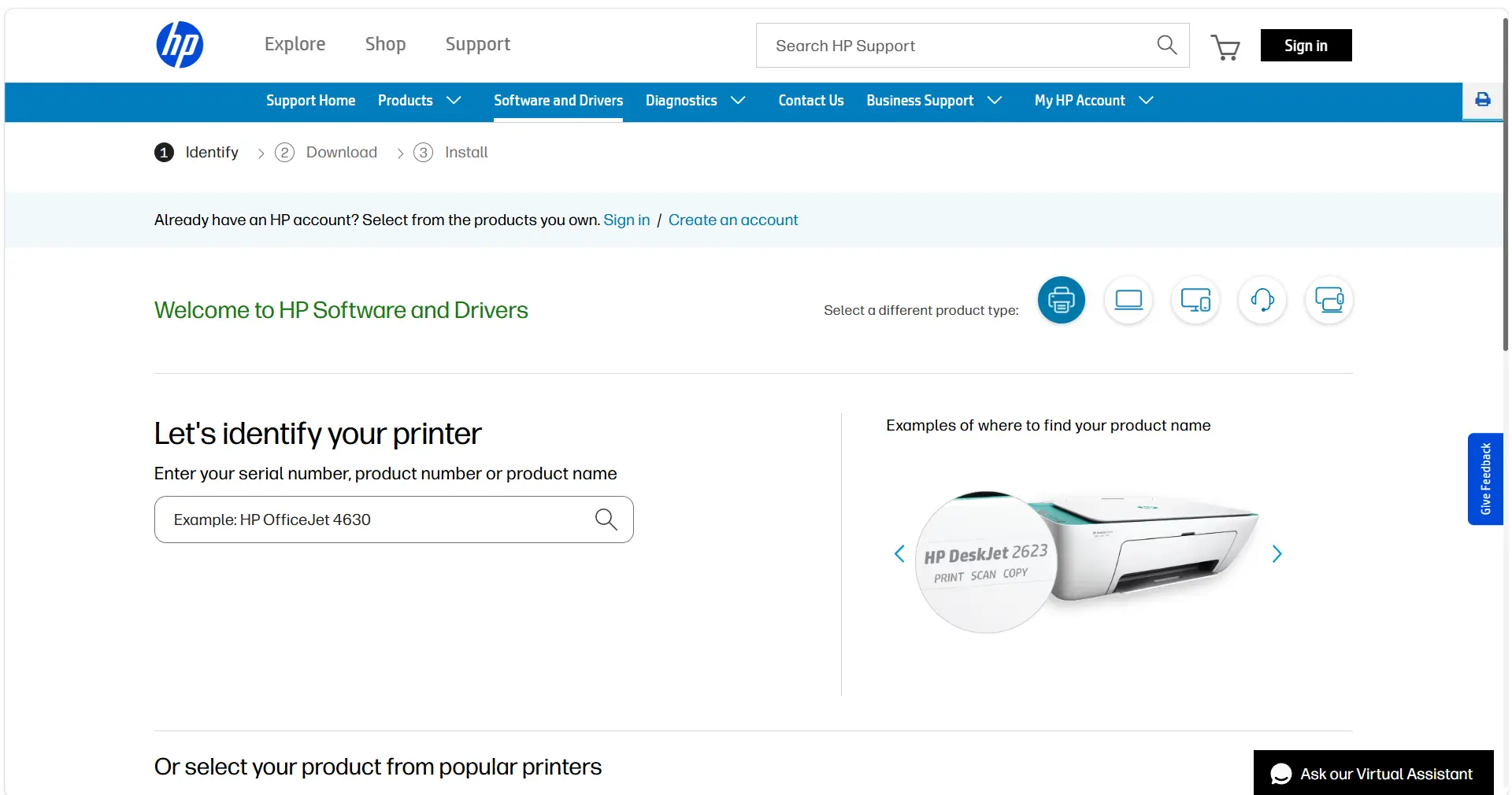
- Select the Windows version that matches your computer.
- Download the driver package offered for the model and open it after the download is complete.
- Follow the installer prompts until it finishes.
- Open the Windows printer list and make sure HP LaserJet P1005 appears without a driver unavailable message.
Verification: start a test-page print from the printer properties. If the model does not appear after installation, disconnect and reconnect the printer, then check the device list again.
Method 3: Add HP LaserJet P1005 using Windows tools
When to use it: the printer is connected to your computer and you need to check whether Windows can detect and add it without manually searching for a separate package.
- Open Windows Settings.
- Go to Bluetooth & devices → Printers & scanners.
- Click Add device next to the section for adding a printer or scanner.
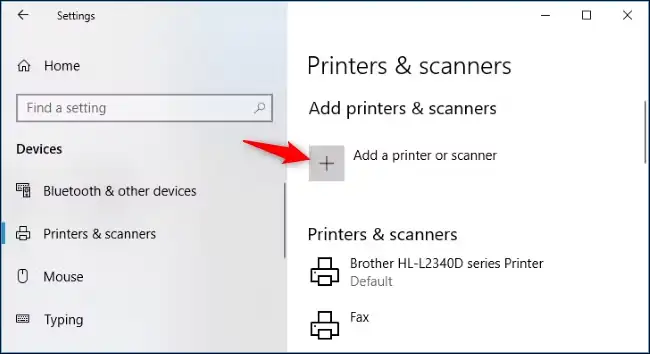
- Select HP LaserJet P1005 if it appears in the list of detected devices.
- Complete the setup by following the Windows prompts.
- Open the added printer and print a test page.
Verification: the test job should disappear from the queue after it prints. If Windows does not show the device, this method does not replace checking the cable, power, and selected connection.
How to avoid the same error again
- Keep the complete model name when searching for a driver: the LaserJet series includes several similar devices.
- After installation, test printing immediately rather than only checking whether the printer icon appears in Windows.
- If the driver is installed but the job does not print, do not reinstall it repeatedly. Check the queue, device status, and connection.
- When changing computers, confirm the Windows version again before selecting a package.
Conclusion
For HP LaserJet P1005, first confirm the exact model and connection status. When the source of the problem is unclear, start with diagnostics through Fionn Printer Driver : it checks the driver and related printing components. If you need to install a specific package yourself, select the model and Windows edition on HP’s official resource. Windows’ built-in add-printer option is appropriate when the device is already detected by the system. Regardless of the method you choose, finish by printing a test page. If it does not print, record the printer status and error message for the next diagnostic step.
Frequently asked questions
Where can I find the exact printer model name?
Check the label on the device and compare it with the name displayed in Windows. Use the full HP LaserJet P1005 name when searching for a driver.
Why is the printer visible in Windows but not printing?
Device detection does not confirm every part of the printing process. Check whether a job is waiting in the queue, whether the status shows Paused or Offline, and print a test page.
Do I need to choose a driver based on the Windows system type?
When downloading manually, choose a package that matches the Windows version on your computer. You can find this information in the About section.
What should I do if the driver is unavailable after installation?
First, check the model and Windows version again. Then use diagnostics to determine whether the problem involves the driver or other printing components.
How can I tell whether installation was successful?
Open the HP LaserJet P1005 properties and send a test page. A successful print is the clearest confirmation of the result.


