 Emily CarterScreen Recording
To record video from your laptop webcam, first make sure the camera is not being used by another app and that Windows allows access to it. For a short video with no editing, use the Camera app. If you also need to capture your screen, audio, or edit the result, choose Fionn Screen Recorder or OBS Studio. Below are three standalone methods: start with Camera, then move to the option that fits your task.
How to Record Webcam Video on a Laptop: Choose a Method
| Method | Best for | Effectiveness | User effort |
|---|---|---|---|
| Windows Camera | A quick webcam-only video | High | Low |
| Fionn Screen Recorder | Recording the screen, webcam, and selected audio; the free version limits saved recordings to 2 minutes at 720p | High | Low to medium |
| OBS Studio | A customizable scene with multiple sources | Depends on setup | Medium |
Before Recording: Camera Permissions and a Quick Check
- Close Teams, your browser, messaging apps, and other apps that may be using the camera.
- Clean the lens and position your laptop so that the light source is in front of you, not behind you.
- Free up disk space, especially before a long recording.
- Make a short test: say a few sentences and check the image and microphone.
Method 1: Record with the Windows Camera App
When to use it: you need a simple video from a built-in or connected webcam without screen capture. This method works in Windows 10 and Windows 11.
- Open the Start menu, type Camera, and launch the app.
- If multiple cameras are connected, click the camera-switch icon in the upper-right corner and choose the one you need.
- Switch to video mode on the right side of the app window.
- Click the video-record button to start recording.
- Click the red stop button when you are finished.
- Open the thumbnail in the lower-right corner, review the video, and, if needed, select the three-dot menu → Open folder.
Check for this method: make sure the video was created and opens from the folder shown by the app.
The recording process and file review are described in the official Microsoft guide to the Camera app .
Method 2: Record Webcam Video with Fionn Screen Recorder
When to use it: you need to record the screen, selected audio, and webcam. Before the main recording, check the camera image in the app; the exact path for enabling and selecting it depends on the available interface version.
- Open Fionn Screen Recorder and choose the capture area: full screen, window, or region.

- Choose whether to record system audio, microphone audio, both sources, or no audio.

- Before recording, select MP4 or another video format.

- Click Start to begin recording, then use Pause or Stop when you are finished.

- Open Media Library to play, edit, locate, or delete recorded videos.

Check for this method: in Media Library, open the created video and make sure it contains the expected image, capture area, and audio.
Method 3: Record Your Webcam in OBS Studio
When to use it: you need a scene with a webcam, images, text, or multiple video sources. OBS Studio requires initial setup, but it lets you assemble a composition before recording begins.
- Install OBS Studio using the
official OBS Studio guide
and launch the program.
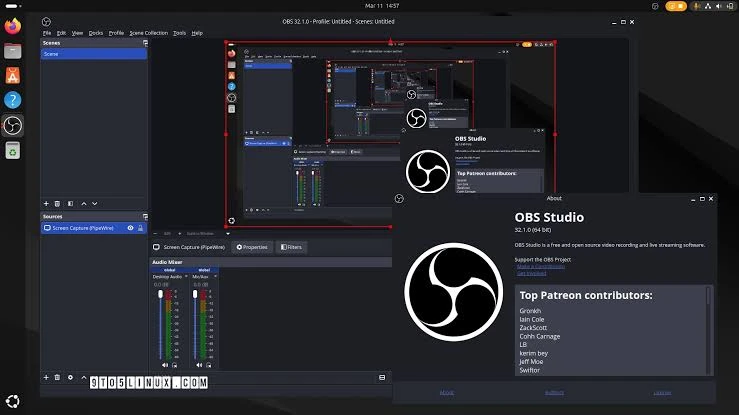
- Run the Auto-Configuration Wizard and choose a recording scenario.
- In the Sources panel, click + and add a Video Capture Device source.
- Select your webcam and confirm the settings to see it in the scene preview.
- Click Start Recording.
- When finished, click Stop Recording and open the saved file.
Check for this method: the camera image should be visible in the preview before you start. If the camera is unavailable, close the Camera app and video-calling programs, then add the source again.
Check the Finished Video
- The file or recording in Media Library opens without an error.
- The required webcam is visible in the frame.
- The expected audio is audible: microphone audio, system audio, or both sources.
- The duration matches the recording; in the free version of Fionn, it does not exceed 2 minutes.
If the camera does not appear in any app, return to Windows permissions and check whether another program is using the device.
Frequently Asked Questions
Where does Windows save videos from the Camera app?
After stopping the recording, open the video thumbnail, then the three-dot menu, and select Open folder. This shows the actual location of that specific file.
Why does my webcam not work while recording?
Most often, camera access is blocked in Windows settings or the device is already being used by a browser, messaging app, or video-calling app. Enable permission and close the competing app.
Can I record the screen and webcam at the same time?
In OBS Studio, add a Video Capture Device source to the scene and check it in the preview. Fionn Screen Recorder supports screen and webcam recording, but check camera availability in your app version before recording: the provided workflow does not confirm the exact setup path.
How do I record video without audio?
In Fionn Screen Recorder, select the no-audio option. In other programs, disable or do not add a microphone source before recording begins.
What is the limitation of the free version of Fionn Screen Recorder?
The free version cannot save a video longer than 2 minutes, and resolution is limited to 720p. For a longer recording, choose another method or a suitable Fionn plan.
Conclusion
For a quick webcam-only video, start with the Windows Camera app. Fionn Screen Recorder is suitable for the confirmed workflow of recording the screen, audio, and webcam, provided you account for the free-version limit. Choose OBS Studio for a scene with multiple sources and more detailed manual setup. After recording, open the finished file and check the image, audio, and duration.


