 Emily CarterScreen Recording
To record two monitors at the same time on Windows, set the displays to Extend mode and choose a recording area that includes both screens. Fionn Screen Recorder supports simultaneous dual-monitor recording, so you can capture a presentation on one screen and a demonstration on the other in one video. OBS Studio is another option when you need to arrange two display sources in a custom layout. This guide also covers a rectangular capture with Windows Snipping Tool.
Before you start
Open
Settings > System > Display
and make sure Windows detects both monitors. Under Multiple displays, choose
Extend these displays
; this creates one desktop across two physical screens. Decide whether the finished video should show both displays at their native positions or place them in a deliberate side-by-side layout.
Quick Method Comparison
| Method | Best For | Efficiency | User Effort |
|---|---|---|---|
| OBS Studio with two Display Capture sources | Long recordings and a controlled two-screen layout | High after setup | Moderate |
| Fionn Screen Recorder | Presentations and demonstrations across two screens, with audio and a media library | Simultaneous dual-monitor recording supported | Low |
| Snipping Tool rectangular video snip | Short captures when a rectangle can cover the required content | High for quick clips | Low |
Method 1: Record both displays in OBS Studio
When to use: Choose OBS when you need a dependable single video with two independently positioned monitor feeds. OBS Display Capture records an entire selected monitor, so adding one source for each display gives you control over the final composition.
- Install and open
OBS Studio from its official download page
.
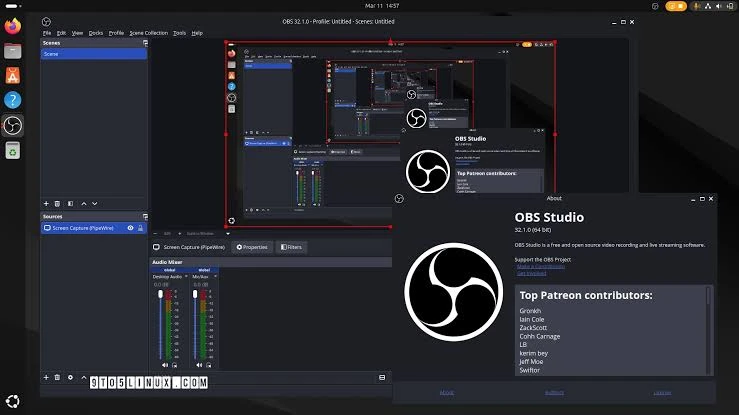
- Create a scene, then select the + button in Sources and add Display Capture .
- Choose the first monitor in the Display setting and confirm the source.
- Add a second Display Capture source and select the other monitor.
- Drag and resize the two sources in the preview until both displays fit the canvas without overlap or cropping.
- Open
Settings > Outputto review the recording settings, then select Start Recording .
Verify: Stop a short test recording and play it back. Both displays should be visible, readable, and synchronized in one file.
OBS also allows its own window to be hidden from screen capture on Windows, which can prevent the recursive “screen within a screen” effect when OBS sits on a captured display.
Method 2: Use Fionn Screen Recorder
Fionn Screen Recorder supports recording two monitors at the same time. Use it for tutorials, presentations, and workflows that move between two screens, with system audio, microphone audio, or both. Set the capture area to include both displays before starting.
- Open Fionn Screen Recorder and set the capture area to include both monitors. Check that the selection covers the content you need on each screen.

- Choose whether to record system audio, microphone audio, both, or no sound.

- Select MP4 or another video format before you start recording.

- Click Start to begin recording, then use Pause or Stop when you are finished.

- Open Media Library to play, edit, locate, or delete your recorded videos.

Play the saved video in Media Library and check that content from both monitors appears in the recording. Check the edges, text readability, and audio before recording a longer session. If a screen is missing, adjust the capture area to include it and record another short test.
Method 3: Capture a two-monitor rectangle with Snipping Tool
When to use: This is a practical built-in Windows 11 option for a brief clip where a rectangular selection can contain the parts of both displays you need. Microsoft describes Video Snip as recording a rectangular selection of any part of the screen. The selection may not be suitable for every monitor arrangement, so use the preview to confirm the edges.
- Open Snipping Tool, then choose
Record
.
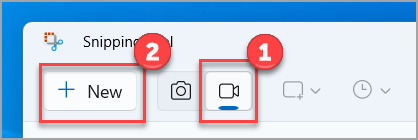
- Select New to begin a video snip.
- Drag the selection rectangle across the content needed from both displays.
- Select Start and perform the task you want to demonstrate.
- Select Stop , review the clip, and save it.
Verify: Check the saved clip for the full selected area. If one monitor is clipped or the output is too wide for viewers, switch to OBS and arrange the two sources inside a standard 16:9 canvas.
Tips for clearer dual-monitor recordings
- Use a 16:9 OBS canvas when the audience will watch on phones or video platforms; place both displays side by side rather than exporting an extremely wide desktop.
- Increase text size before recording if each monitor will occupy half the final frame.
- Close notifications and private windows on both displays. Display capture records the entire chosen monitor, including overlays.
- Lower the frame rate for slides or software walkthroughs if file size and system load matter more than motion smoothness.
Conclusion
Fionn Screen Recorder supports simultaneous dual-monitor recording and is suitable for capturing a presentation and a demonstration together. Include both screens in the capture area, choose the audio sources, and record a short test. Choose OBS Studio if you need to position or resize each monitor separately in a custom composition; use Snipping Tool for a short rectangular clip. Review both screens and the audio before recording the full session.
Frequently Asked Questions
Can OBS record two monitors in one video?
Yes. Add one Display Capture source for each monitor in the same OBS scene, then size and position both sources on the canvas before recording.
Why does my dual-monitor recording look too wide?
Two landscape monitors side by side create a wide frame. In OBS, scale the sources into a 16:9 canvas or crop unneeded areas so the output is easier to view.
Can Windows Snipping Tool record two monitors?
Snipping Tool records a rectangular video selection. It can work for content spanning both displays if the selection rectangle includes it, but it offers less layout control than OBS.
How can I avoid recording the OBS window itself?
Move OBS to the monitor that is not being captured, or use OBS’s Windows setting that hides OBS windows from screen capture. Make a short test recording to confirm the result.
Can I include system audio and a microphone?
OBS can capture desktop audio and microphone audio. In Fionn Screen Recorder, the available choices include no sound, microphone only, or system sound and microphone. Verify audio meters or replay a short test before the final recording.
Can Fionn Screen Recorder record two monitors at the same time?
Yes. Fionn Screen Recorder supports simultaneous dual-monitor recording. Set Windows to Extend mode, include both displays in the capture area, select the audio sources, and start recording.


