 Emily CarterScreen Recording
To record a horror game with a microphone, first choose a capture method, enable game audio and voice, then make a short test recording. Check the saved video for clear speech, game audio, and smooth footage before starting a long session. Xbox Game Bar works for a quick clip, OBS Studio provides manual source controls, and Fionn Screen Recorder lets you choose the area and audio source for the confirmed recording workflow.
What to prepare before recording
- Launch the game and make sure your microphone works in Windows.
- Decide in advance what you need to capture: the game, a window, the full screen, or a specific area.
- Close messaging apps and turn off pop-up notifications.
- If personal information is open nearby, choose a specific window or area to capture.
Quick comparison of methods
| Method | Best for | Effectiveness | User effort |
|---|---|---|---|
| Xbox Game Bar | Quickly recording one game | High | Low |
| Fionn Screen Recorder | A short test with a choice of screen, window, or area and voice recording | High | Low |
| OBS Studio | Recording with scenes and manual source configuration | High after setup | Medium |
Method 1: Record a short game clip with Xbox Game Bar
When to use it: you are playing in windowed or full-screen mode and want to quickly save a short segment without separate software.
- Open the game and make sure it is the active window.
- Press
Win + Gto open Xbox Game Bar.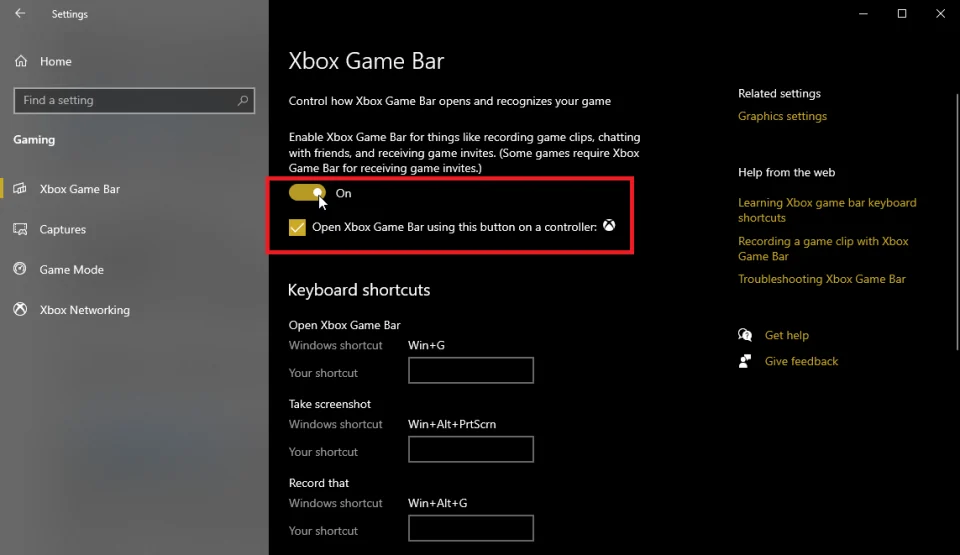
- Enable the microphone in the capture controls if it is turned off.
- Start recording with the record button or the
Win + Alt + Rshortcut. - Say a few words while playing, then stop the recording.
- Open the saved clip and check whether your voice and game audio are audible.
Before publishing, check current capture limits, control locations, and keyboard shortcuts in Microsoft's guide to recording clips with Xbox Game Bar .
Method 2: Record a horror game with a microphone using Fionn Screen Recorder
When to use it: you need to choose the full screen, a window, or a specific area and explicitly select whether system audio, microphone audio, or both sources will be recorded.
- Open Fionn Screen Recorder and choose a capture area: Full Screen, Window, or Region.

- From the recording area menu, select Full Screen, Window, or Region according to what you need to record.
- Choose to record system audio, microphone audio, both sources, or no sound.

- Before recording, select MP4 or another video format.

- Click Start to begin recording, then use Pause or Stop when you are finished.

- Open Media Library to play, edit, locate, or delete your recorded videos.

Method 3: Set up OBS Studio for manual source control
When to use it: you want to build a scene manually, such as by adding game capture, a separate microphone, and an audio level indicator.
- Install OBS Studio from the
official OBS Studio download page
and launch the program.
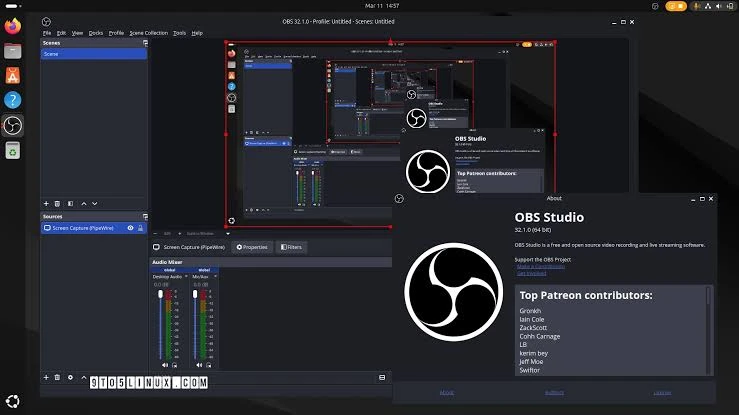
- Create a scene and add a game capture source.
- Select the running game in the capture source properties.
- Specify the microphone you use in the audio settings.
- Check whether the mixer indicators respond to the game and your voice.
- Record a short segment and listen to the created file.
Before publishing, check interface element names and the sequence of steps against the official OBS documentation. If game capture shows a black screen, use the official OBS game capture troubleshooting guide .
How to check audio, smoothness, and file size
- Record a short segment in a quiet scene and during a moment with loud effects.
- Listen to the file and check whether the voice is distinguishable over the game.
- Evaluate footage smoothness and the saved file size.
- If you are not satisfied with the result, change only one recording setting.
- Repeat the short test and compare the new file with the previous one.
Fionn offers configurable FPS, quality, and encoding preset settings. Higher values can increase computer load and file size, so do not use universal values without testing them in your game.
Tips for recording tense game scenes
- Close messaging apps and turn off pop-up notifications: they may appear in the recording or distract you during gameplay.
- Position the microphone closer to your voice, but not directly in the airflow. This reduces plosive sounds without needing to raise the input level.
- Check voice clarity during a loud scene, not only in the game menu.
- Choose a specific window capture when your second monitor contains private messages or other personal data.
Conclusion: Which method to choose
For a quick short clip, use Xbox Game Bar after checking the current steps in Microsoft's guide. Fionn Screen Recorder is suitable for the confirmed workflow of choosing an area and audio sources, and its free version is suitable for a test video of up to 2 minutes in 720p. If you need manual control over scenes and sources, use OBS Studio after reviewing its current documentation. In every case, listen to a test file first: it is the only way to confirm that the voice, game audio, and video were recorded as intended.
Frequently asked questions
Can I record the game and my voice at the same time?
Yes. Select system audio and microphone audio where the program offers source selection, or add a microphone as a separate audio source in OBS Studio.
Why does the recording include the game but not the microphone?
Usually, the wrong input is selected, the microphone is disabled in the program, or the app is not allowed to access the microphone in Windows. Check these items and make another short test.
Is the free version of Fionn suitable for a full playthrough?
No, if the saved video must be longer than 2 minutes or use a resolution above 720p: this is a limitation of the free version. For a full playthrough, choose another available method in this article or a suitable paid plan.
What should I change if recording makes the game less smooth or the file is too large?
Change one recording setting, then repeat the short test and compare smoothness, audio, and file size. In Fionn, you can check the effects of FPS, quality, and the encoding preset; there is no universal value for every game.
Which capture should I choose: full screen or window?
Full screen is suitable for a game on one display. A window reduces the chance of recording content from other programs or a second monitor.
What should I do if OBS shows a black screen?
Use the official OBS game capture troubleshooting recommendations and repeat the test after changing the setting.


