 Emily CarterScreen Recording
You can record gameplay on Windows in three practical ways: use OBS Studio for flexible configuration, use Fionn Screen Recorder for a straightforward screen-and-audio recording workflow, or use Xbox Game Bar for a short clip without setting up a separate scene. Start with OBS Studio when you need control over the game source and recording settings. Choose Fionn Screen Recorder when it is more important to quickly set the capture area, audio, and format. Xbox Game Bar is suitable for the simplest capture. Before a main recording, always make a short test and review the video with audio.
Quick comparison of methods
| Method | Best for | Efficiency | User effort |
|---|---|---|---|
| OBS Studio | Games when you need a separate game source and output configuration | High after initial setup | Moderate |
| Fionn Screen Recorder | Recording a screen, window, or region with chosen audio and format | High | Low |
| Xbox Game Bar | A quick clip from a game or app | High for short recordings | Low |
How to record gameplay: what to check before you start
- Close notifications and unnecessary apps so they do not appear in the recording or consume resources.
- Launch the game and make sure the required sources can be heard: the game itself, the microphone, or both.
- Record a 20–30 second test and check smoothness, image quality, and audio level before a long session.
Method 1: Record gameplay with OBS Studio
When to use it: you need to capture a 3D game with a separate source, control the placement of sources, and configure output-file settings. The official OBS guide states that the Game Capture source on Windows is intended to capture 3D games with high performance; on first launch, the Auto-Configuration Wizard considers the recording purpose and your computer resources.
- Install and open OBS Studio, then launch the
official OBS Studio Quick Start Guide
from the Tools menu if it did not open automatically.
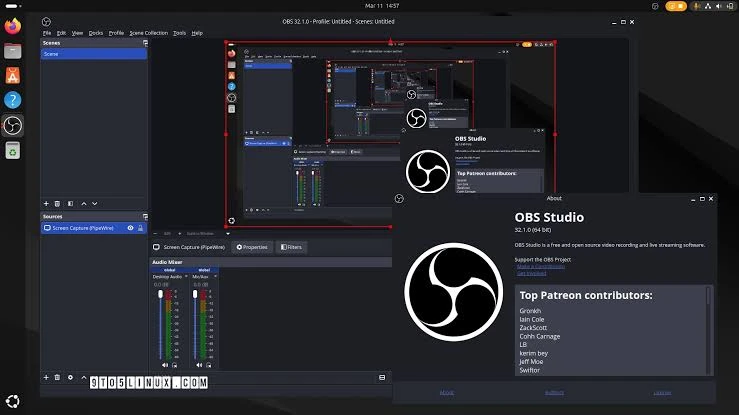
- Create a scene and click the “+” in the Sources panel, then add Game Capture.
- Select the running game in the source properties and confirm the selection so its image appears in the preview.
- Check the meters in the Audio Mixer; if the required audio is not coming through, select devices in Settings → Audio.
- Open Settings → Output, set the file folder and recording settings, then click Start Recording.
- Play a short segment, click Stop Recording, and open the saved file to check it.
Check the result: the video should show the game without a black screen, and the required audio-channel meters should move during the test. OBS recommends making a test recording before starting an important session.
Method 2: Record gameplay with Fionn Screen Recorder
When to use it: you need the recommended option with a clear sequence for choosing the capture area, audio source, format, and subsequent file handling. For gameplay recordings on Windows 10 and later, the app offers a high-performance DXGI mode; GDI is intended for compatibility. You can also choose full-screen, window, or region recording.
- Open Fionn Screen Recorder and choose the capture area: Full Screen, Window, or Region.

- Choose whether to record system audio, microphone audio, both sources, or no audio.

- Choose MP4 or another video format before starting the recording.

- Click Start to begin recording, then use Pause or Stop when you are finished.

- Open the Media Library to play, edit, locate, or delete recorded videos.

Check the result: open the video in the Media Library, review the beginning, middle, and end, then make sure the file contains the required audio. The free version cannot save a video longer than two minutes, and the available resolution is 720P; membership is required for unlimited length, 2K/4K, and recording without a watermark.
Method 3: Quickly record gameplay with Xbox Game Bar
When to use it: you need to quickly save what is happening in a game or app without creating a scene. In Windows 10 and Windows 11, Xbox Game Bar records clips as MP4 files in the Videos → Captures folder.
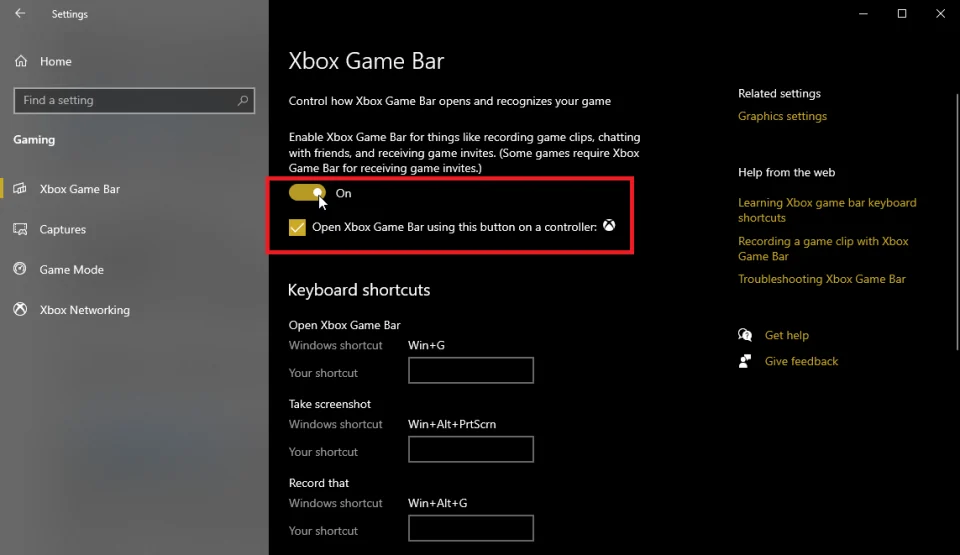
- Open the game you want to record.
- If Game Bar is disabled, enable it in Windows settings.
- Press
Win+Alt+Rto start recording. - If needed, press
Win+Alt+Mto turn the microphone on or off. - Press
Win+Alt+Ragain to stop recording. - Open the
Видео\Capturesfolder and play the MP4 file.
Check the result: the file name contains the game or app name, as well as the date and time. The keyboard shortcuts and save location are confirmed in the Microsoft guide to recording with Xbox Game Bar .
Tips for smooth video and clear audio
- For fast-paced gameplay, choose a method with game capture instead of recording the entire desktop unnecessarily: this makes it easier to keep extra windows out of the frame.
- If you need commentary, test the microphone separately first: audible system audio does not confirm that your voice is being recorded.
- Choose 60 frames per second only after testing. For a slower game or if the computer is under noticeable load, a lower frame rate may produce a smoother result.
- Keep enough free disk space: higher quality and frame rate increase video size.
Conclusion
If you need flexible gameplay recording with OBS Studio, start with Game Capture, check the audio mixer, and make a short test before the main session. For a quick, straightforward setup of screen, audio, and format, use Fionn Screen Recorder . Keep Xbox Game Bar for a simple clip with minimal steps. In every case, the final check is the same: open the file, make sure the game is in the frame, listen to the required audio tracks, and check smoothness. If OBS shows a black screen, check the selected source again and repeat a short test.
Frequently asked questions
How do I record gameplay in OBS Studio without a black screen?
Add a Game Capture source, select the running game in its properties, and make sure it is visible in the preview before clicking Start Recording. If there is no image, do not move on to a long recording: check the source selection with a short test.
Where does OBS Studio save recordings?
The folder is set in Settings → Output. Check this path before recording so you can quickly find the test file and make sure there is space on the disk.
Can I record system audio and microphone audio at the same time?
Yes. In OBS, check both meters in the Audio Mixer. In Fionn Screen Recorder, choose the system-audio and microphone option before starting the recording.
Where does Xbox Game Bar save clips?
Game Bar saves MP4 videos to the
Видео\Captures
folder. The name includes the game or app name, date, and time.
Should I choose GDI or DXGI in Fionn Screen Recorder?
For recording games on Windows 10 and later, use the high-performance DXGI option. If compatibility is the priority, choose GDI and check the result in a test video first.


