 Emily CarterScreen Recording
You can record R.E.P.O. on PC in three ways: with Fionn Screen Recorder , the built-in Xbox Game Bar, or OBS Studio. If you need a straightforward way to choose the capture area, format, and audio, start with Fionn Screen Recorder. Xbox Game Bar is convenient for quickly capturing an active game with Windows tools, while OBS Studio is suited to scenes with multiple sources. Before an important session, record a short test clip and check its video and audio.
How to Choose a Method for Recording R.E.P.O. on PC
| Method | Best for | Effectiveness | User effort |
|---|---|---|---|
| Fionn Screen Recorder | Recording gameplay while choosing a capture area and audio source | High | Low |
| Xbox Game Bar | Quickly capturing a short moment in an active game with Windows tools | High | Low |
| OBS Studio | Scenes with multiple sources | Medium | Medium |
Choose the method based on your task. For the R.E.P.O. window or a specific part of the screen, the area and audio options in Fionn Screen Recorder are convenient. For a simple game clip without scene setup, use Game Bar. If you need a camera overlay or separate source placement, use an OBS Studio scene.
Method 1: Record R.E.P.O. on PC with Fionn Screen Recorder
When to use it: when you need to select the full screen, a window, or an area, set game and microphone audio, then open the finished video for viewing or editing.
- Open Fionn Screen Recorder and select the full screen, a window, or an area.

- Choose whether to record system audio, microphone audio, both sources, or no audio.

- Before recording, select MP4 or another video format.

- Click Start to begin recording, then use Pause or Stop when you finish.

- Open Media Library to play, edit, locate, or delete recorded videos.

Check: open the recording in Media Library. Make sure the video includes R.E.P.O. footage and the selected audio: system audio, microphone audio, or both sources.
Method 2: Record a Short Moment with Xbox Game Bar
When to use it: when R.E.P.O. is already open in the active window and you need to quickly save a gameplay moment without installing a separate program.
- Launch R.E.P.O. and bring the game window to the foreground.
- Press
Win + Gto open Xbox Game Bar.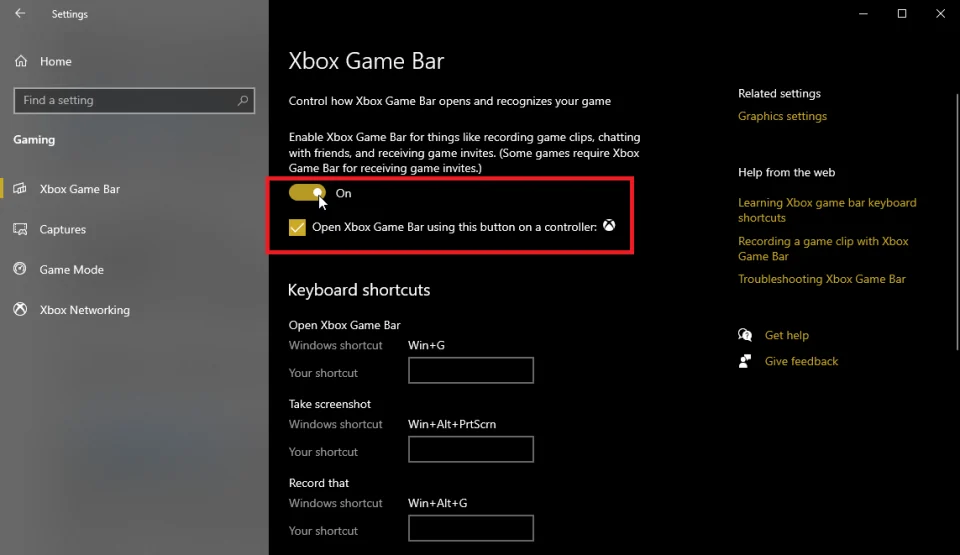
- In the recording widget, enable the microphone if you want to add your voice.
- Click the Record button or press
Win + Alt + R. - After the desired moment, press
Win + Alt + Ragain to stop recording.
Check: open the saved clip notification or the Game Bar recordings folder and play the created file. If the video is present but your voice is missing, check the microphone status in the recording widget before the next take.
Method 3: Record R.E.P.O. with OBS Studio for a Multi-Source Scene
When to use it: when you need to record not only the game, but also a camera, microphone, or other sources in one customizable scene.
- Install and open
OBS Studio from the official website
.
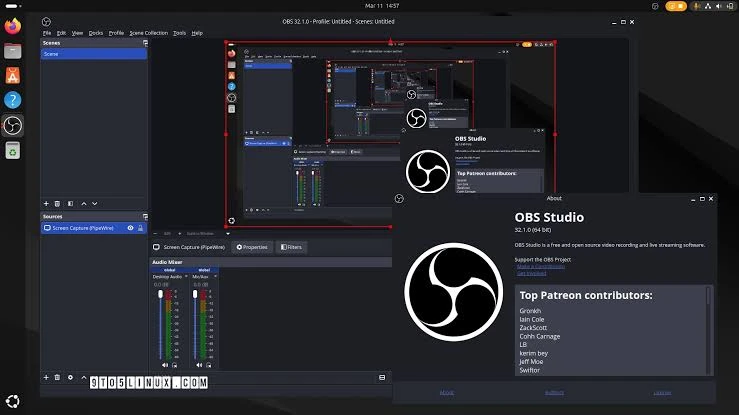
- In the Sources panel, click + and add Game Capture.
- Choose to capture a specific window and select the R.E.P.O. window.
- Check the indicators in Audio Mixer to make sure the required audio sources are being sent to the recording.
- Click Start Recording, play the desired segment, then click Stop Recording.
Check: find the file at the recording path set in OBS Studio output settings and open it in a video player. If you added a camera, also check its position and size in the frame.
Check a Test Recording Before Your Gameplay Session
- Make a 10–15-second test video to detect missing video, system audio, or microphone audio in advance.
- Decide on the voice source: turn off the microphone when you need only game audio, or enable both sources for commentary.
- For a clean gameplay video, select the game window or full screen; use an area when you need to show part of the interface.
- Check free disk space: high quality and high frame rates create larger video files.
- Open the saved test file and listen for a few seconds, checking video smoothness, game audio, and voice.
What to Do After Recording: One Highlight or a Compilation of Multiple Clips
If you need one highlight, open the recording in an editor, identify the beginning and end of the desired moment, remove the extra footage, and export the result. This is editing one source video.
Combining several gameplay moments into one video is a separate task. For that, use the published guide How to Make a Gameplay Highlights Compilation on Windows. This article does not assume that Fionn Screen Recorder combines multiple clips: that capability is not confirmed by the provided information.
Conclusion
Choose a method based on your task: Fionn Screen Recorder for configuring the capture area, format, and audio; Xbox Game Bar for a short moment in an active game; and OBS Studio for a scene with additional sources. First make a test recording, then open the finished file and check the video, game audio, and voice. Trimming one moment and combining multiple clips are different follow-up tasks; for a compilation of several clips, go to a separate guide.
Frequently Asked Questions
Can I record R.E.P.O. with my voice?
Yes. In Fionn Screen Recorder, you can select system audio and microphone audio. In Xbox Game Bar, enable the microphone in the recording widget, and in OBS Studio, check the required input in Audio Mixer.
Which method should I choose for a short gameplay moment?
Xbox Game Bar is suitable for a quick clip from an active game. If it is important to choose the capture area, format, and audio source in advance, use Fionn Screen Recorder.
Why is there no game audio in my recording?
Play a short test file and check whether system audio is selected in the recording program. In OBS Studio, also make sure the indicator for the required source moves in Audio Mixer before recording begins.
Is OBS Studio suitable for recording a webcam over gameplay?
Yes. Add game capture and a separate camera source to one scene, position the camera in the frame, and only then start recording.
What are the limitations of the free version of Fionn Screen Recorder?
The free version lets you save videos up to 2 minutes long and up to 720p resolution. Longer videos or 2K/4K require the applicable paid access.


