 Emily CarterPrinter Drivers
Introduction
To install or repair the HP LaserJet Pro MFP M125a Driver, first confirm the exact model, your Windows version, and whether the printer is connected by USB or available on the network.
Then use the route that matches what you see: use HP Support when you want the manufacturer’s download choices, Windows Settings when the printer is connected but not added, or Fionn Printer Driver when you want to scan for driver and common printing issues before applying a suggested repair.
A completed installation is not proof that printing works. Finish by printing a Windows test page. If it fails, check the connection, queued jobs, and printer status before trying another driver.
Before you begin
- Confirm the label says HP LaserJet Pro MFP M125a ; a similar M125-series model may have different options.
- Note whether the printer uses USB or a network connection. Keep the printer powered on and connected before Windows searches for it.
- Know your Windows version and architecture. On HP’s support page, select only a package explicitly offered for your model and operating-system selection.
Quick Method Comparison
| Method | Best For | Efficiency | User Effort |
|---|---|---|---|
| Fionn Printer Driver | Finding a driver issue or common printing issue in one workflow | High | Low |
| HP Support | Choosing a manufacturer-provided option for the exact model and Windows selection | Moderate | Moderate |
| Windows Settings | A connected USB or network printer that Windows has not added | Moderate | Moderate |
Method 1: Install or repair the driver with Fionn Printer Driver
Recommended when the cause is unclear. Fionn Printer Driver supports Windows 10 and Windows 11, can find missing or outdated printer drivers, and supports HP among popular manufacturers. It can also scan installed printers, drivers, and common printer issues.
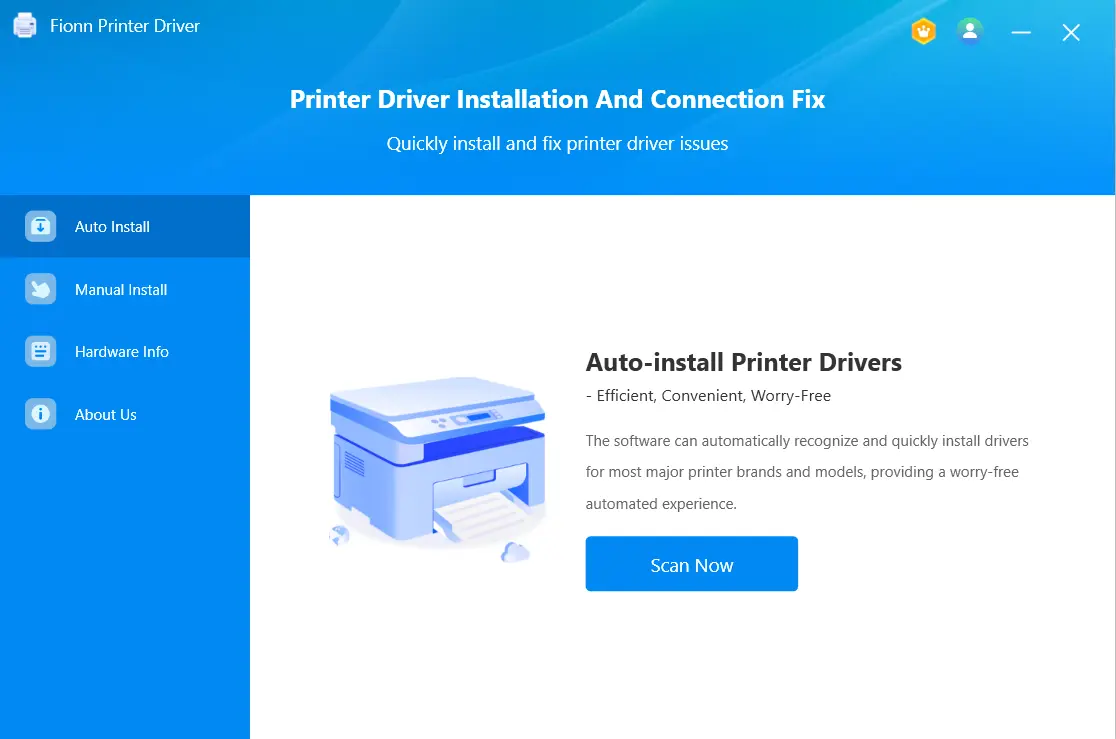
- Launch Fionn Printer Driver and select
Scan Now
to scan the computer for printer drivers and related issues.
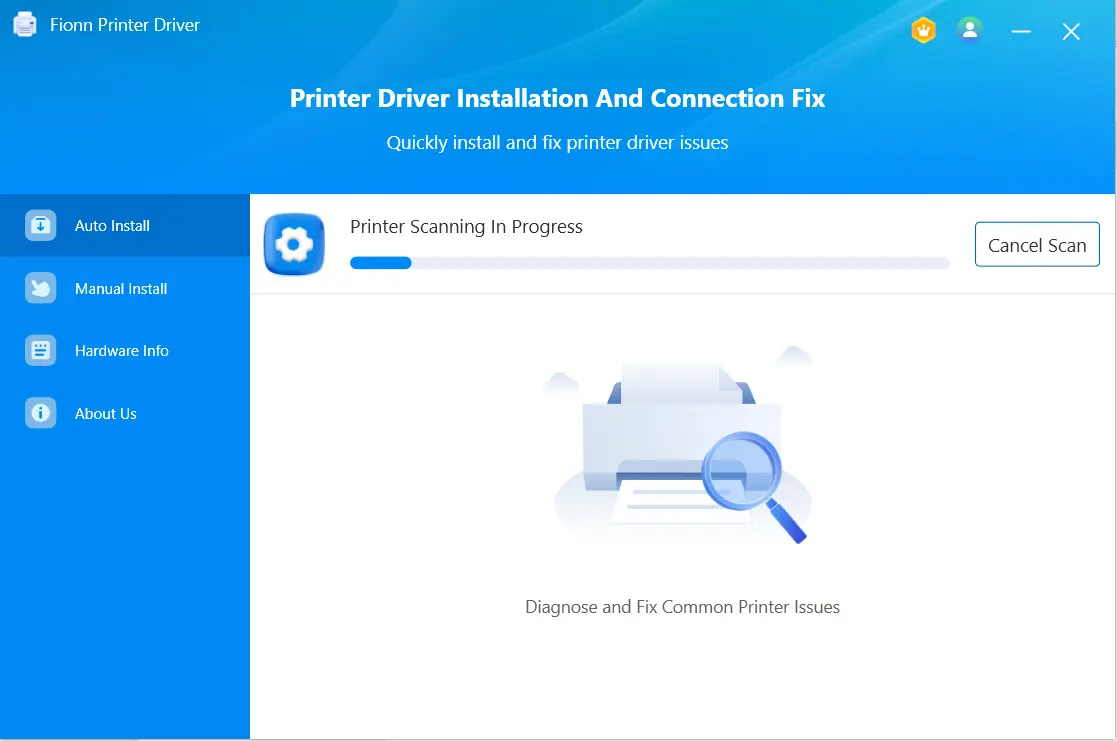
- Wait while Fionn Printer Driver scans installed printers, drivers, and common printer issues.
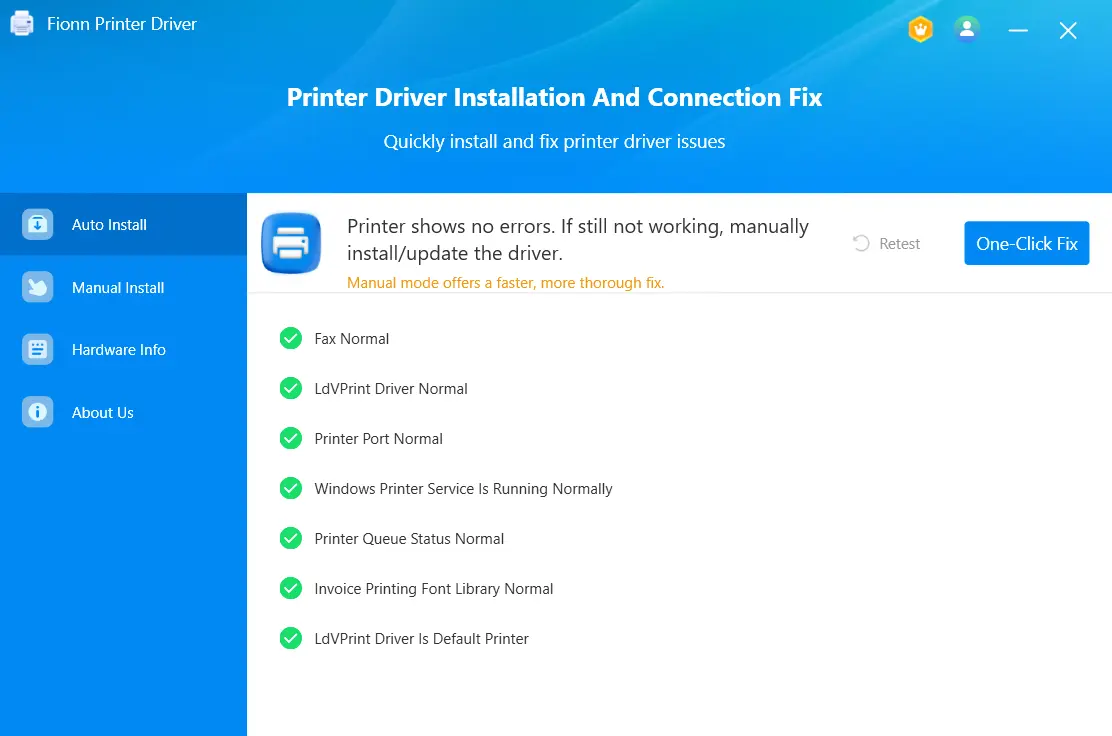
- When the scan finishes, review the detected driver issue, then select
One-Click Fix
to start the suggested installation or repair.
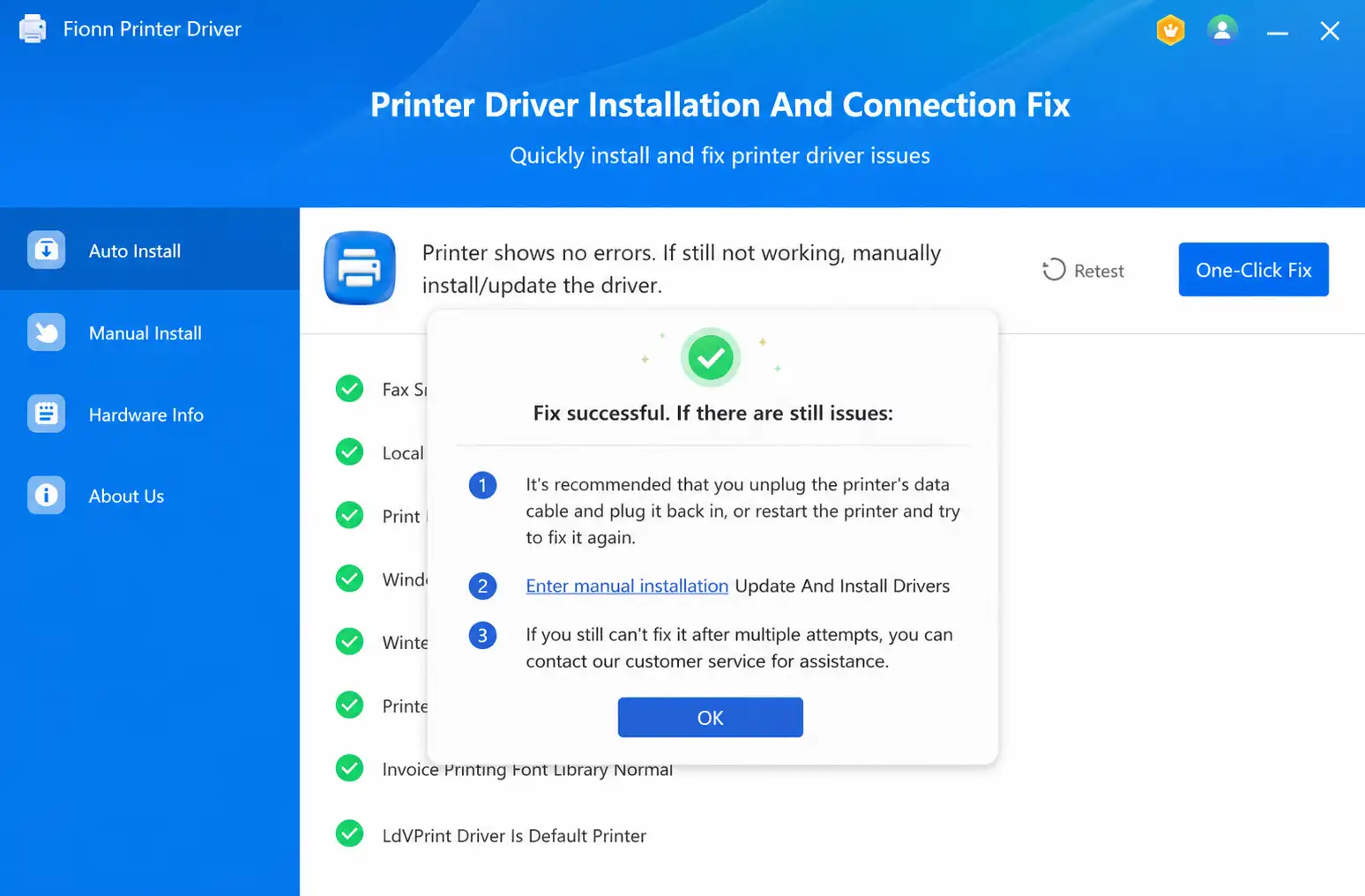
- Wait for the operation to finish and review the result. Then print a Windows test page to check whether the printer actually works.
Method 2: Get the driver from HP Support
Use this route when you prefer to review HP’s model-specific download and setup choices yourself. Open the official HP LaserJet Pro MFP M125a setup page ; it is a support entry point for this model.
- Select the operating system shown on the HP page, or change it to match the Windows version on the computer.
- Select the operating-system version requested by HP.
- Review the software and driver choices shown for that exact model and operating-system selection.
- Download and install only a package that HP offers for that combination, following the instructions presented by HP.
- Print a Windows test page after setup to confirm the printer can produce output.
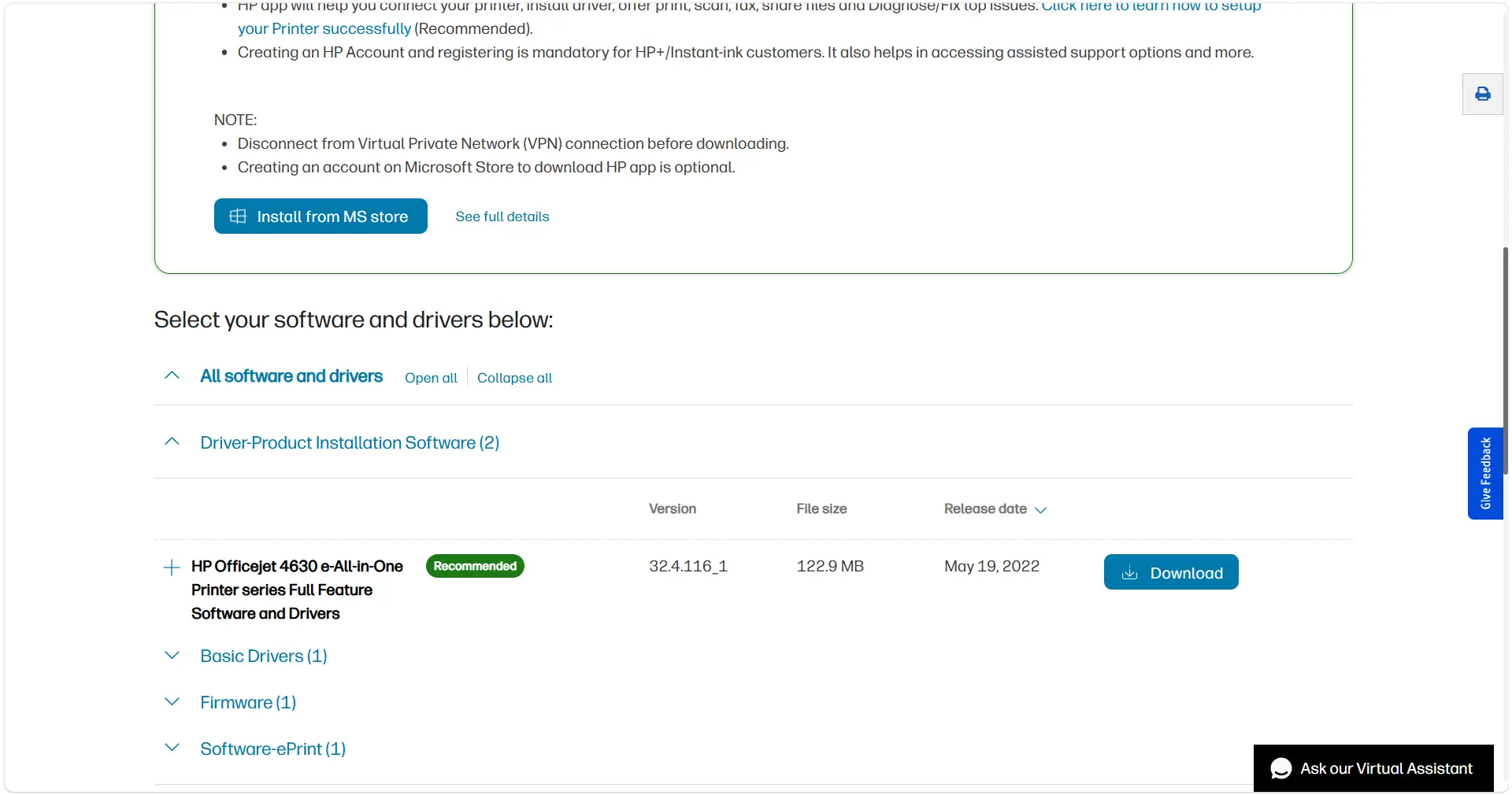
HP’s page may show different choices depending on the selected operating system and region. Do not assume that a package offered for another model or Windows selection applies to the M125a.
Method 3: Add the printer through Windows Settings
Use this method when the printer is connected but does not appear as an installed device. Microsoft documents this path for Windows 10 and Windows 11 printer connection and printing problems.
- Open Settings > Bluetooth & devices > Printers & scanners , and make sure the printer is powered on and connected.
- Select
Add device
or
Refresh
. If the HP LaserJet Pro MFP M125a appears, select
Add device
.

- If it does not appear, select Add manually , then choose Add a local printer or network printer with manual settings .
- Select the existing port used by the printer; for a USB connection, select its USB port. Then choose the manufacturer and printer model, using Windows Update or Have Disk only as Microsoft presents those choices.
- Select Print a test page , then finish setup.
For Microsoft’s full guidance, see fix printer connection and printing problems in Windows .
Conclusion
Start with HP Support when you need to select a manufacturer-provided option for the exact M125a and Windows combination. Use Windows Settings when a connected printer is not added. When the cause is uncertain, Fionn Printer Driver is a practical way to scan for driver and common printer issues before applying the suggested action.
Whichever route you choose, print a Windows test page. If it does not print, confirm the USB or network connection, clear any paused or unfinished jobs, and continue with Windows printer troubleshooting rather than repeatedly reinstalling the same driver.
FAQ
Where can I download the HP LaserJet Pro MFP M125a driver?
Use HP’s official M125a setup page, select the exact operating system and version, and choose only a package displayed for that combination. The available choices can vary by operating system and region.
Does Windows 11 support adding this printer manually?
Microsoft documents a manual path in Printers & scanners: select Add manually, choose a local or network printer with manual settings, select the connected port, then select the manufacturer and printer model. Print a test page after installation.
What should I do if Windows cannot find the printer?
Confirm the printer is turned on and connected, then use Add device or Refresh in Printers & scanners. If it still does not appear, use Add manually and select the correct connection port. For USB, Microsoft instructs users to select the printer’s USB port.
Why does the driver installation finish but the printer still not print?
Driver installation and successful printing are separate outcomes. A failed test page can point to the connection, a paused or unfinished queue, printer service, or a device condition such as offline status, paper, or a jam. Check those conditions before installing another driver.


