 Emily CarterAuto Clicker
To repeat mouse and keyboard actions, record a short routine in Fionn Auto Clicker , save it, and replay the selected recording a chosen number of times. Start with a harmless local task, such as typing in a blank document, so you can observe the result in the intended active window before using the routine for anything consequential.
This guide covers the supplied record-and-playback workflow. Use automation only where the relevant application, game, or service permits it.
Record and replay actions with Fionn Auto Clicker
Use this workflow to create a named recording, save it to the recordings list, and replay that selected item with a specific count. Keep the first recording brief and harmless.
- Open
Key and Mouse Recording
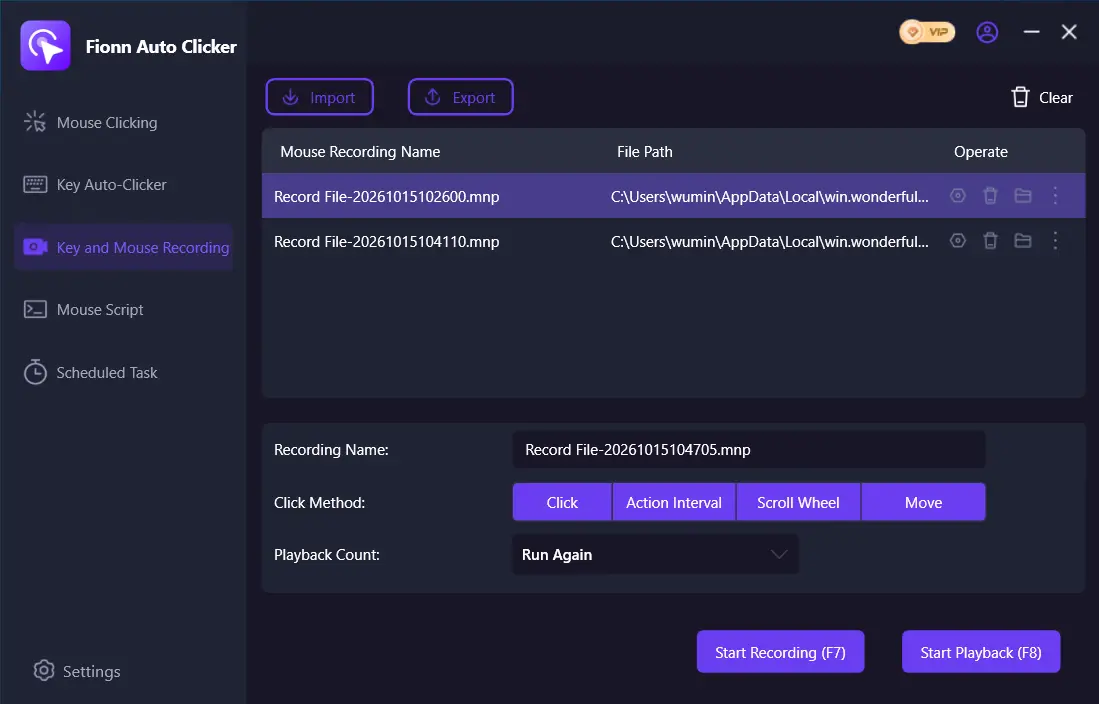
. Enter a Recording Name, select
Click
,
Action Interval
,
Scroll Wheel
, and
Move
as the action types to capture, then click
Start Recording (F7)
.
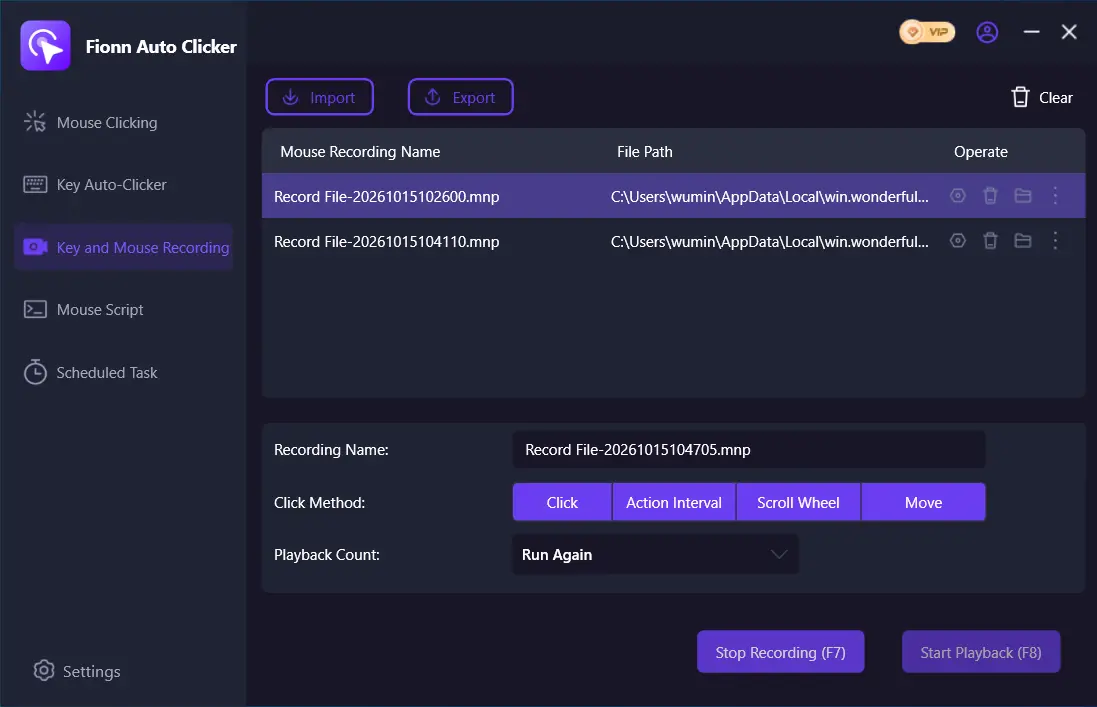
- Identify the intended click position or target key, then perform the actions you want to record. While recording is active, the button changes to
Stop Recording (F7)
.
- Click
Stop Recording
or press
F7
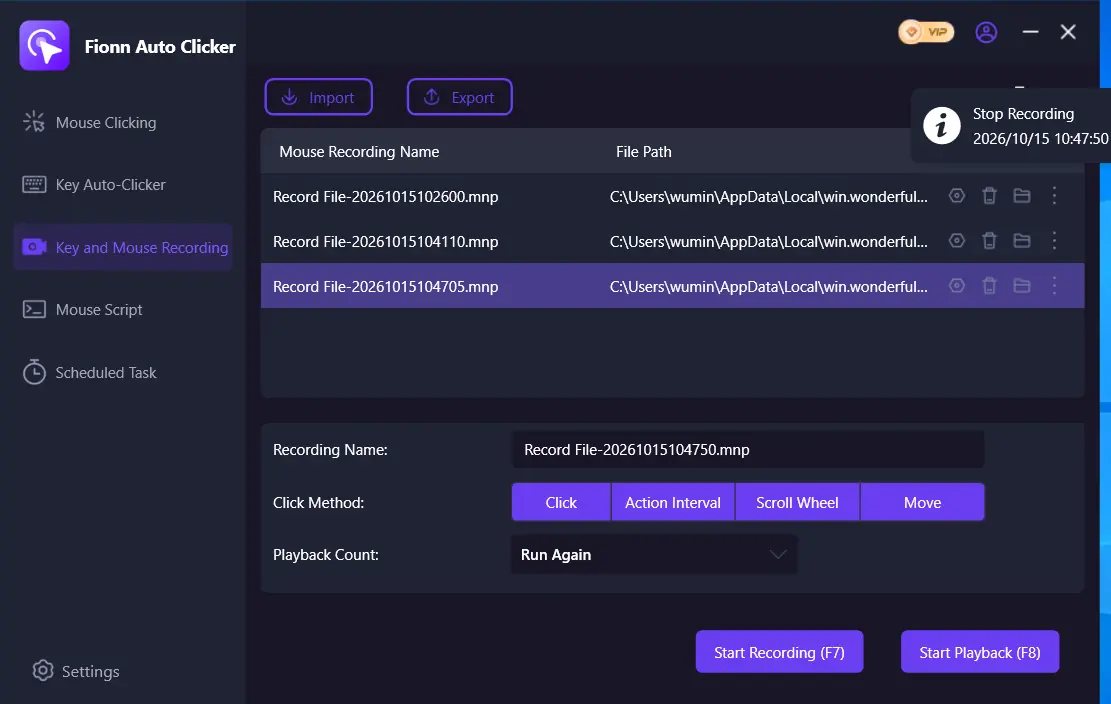
to finish. Confirm that the new recording appears in the list, then select the recording you want to replay.
- Set Playback Count as needed. For a specific repetition count, choose
Custom Times
and enter a number.
Start a small, finite automated test by clicking
Start Playback (F8)
.
Compare the visible result with the physical input you confirmed earlier.
During playback, click
End Replay (F8)
to stop.
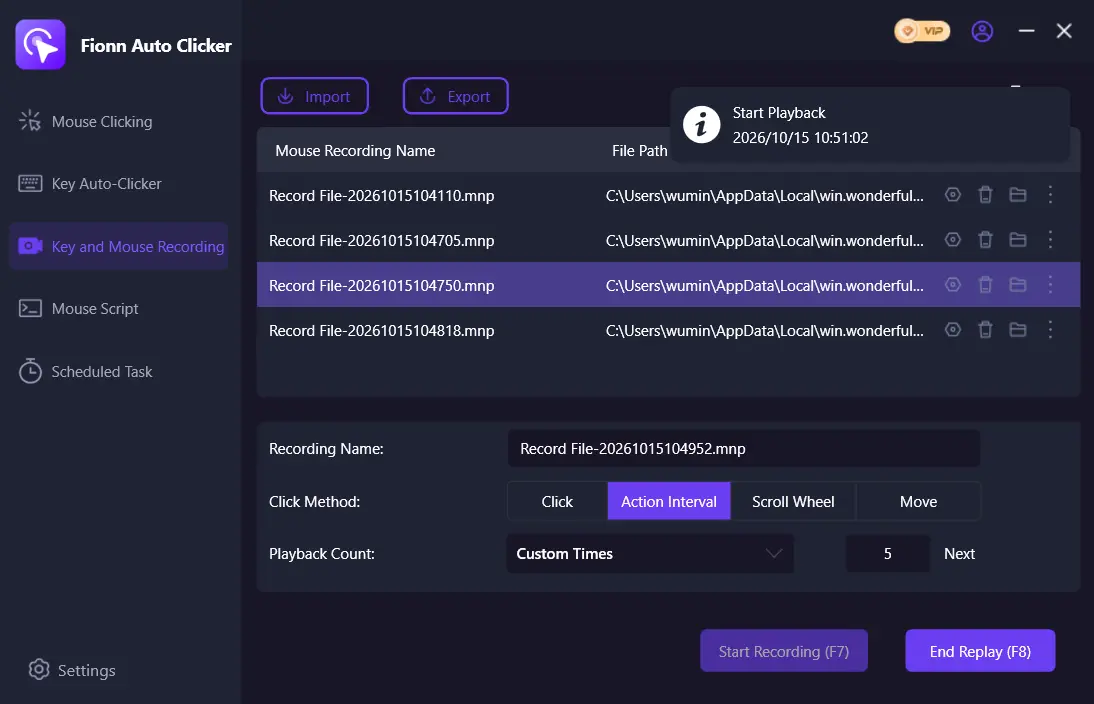
For the local check, keep the target window active and watch the selected recording replay the short sequence. Confirm that it performs the expected visible actions, then use End Replay or F8 if you need to stop active playback. This check confirms behavior in that local active window only.
Practical limits
Some windows may not support background clicking. Test in the intended active window rather than assuming the recording will work in the background or in every application. If the target layout or required input changes, re-record the short routine before relying on it.
Conclusion
Record the actions you need, stop the capture with F7, and confirm that the named recording appears in the list. Select it, choose Custom Times when you need a specific number of repetitions, and begin playback with F8. A brief local run lets you verify the visible result and stop playback with End Replay or F8 when needed. Fionn Auto Clicker is relevant here because the supplied workflow supports saving and replaying a selected recording.
Frequently Asked Questions
How do I stop an active playback?
During playback, click End Replay or press F8 .
How do I know the recording was saved?
Stop recording with Stop Recording or F7, then confirm that the new recording appears in the recordings list. Select that item before starting playback.
Why should I use Custom Times first?
Custom Times lets you enter a specific repetition count. A small finite count is useful for observing the recorded sequence before running it more times.
Is normal auto-clicking required before recording a routine?
No. Normal mouse auto-clicking is separate from this record-and-playback workflow.
Will a recording work in a background window?
Do not assume so. Some windows may not support background clicking; test the recording in the intended active window and observe the result.


