 Emily CarterAuto Clicker
Use this guide only after you have confirmed the exact Roblox experience and its current player-facing automation rules. On Windows 10 or 11, Auto Clicker can record and replay a short, user-defined keyboard-and-mouse sequence. Record a harmless, reversible sequence, replay it with a controlled count, and check one run in the Roblox desktop client.
The supplied Plants Vs Brainrots target and its automation permission have not been confirmed. Verify both before using a recording. This is a Windows desktop procedure only; it does not establish support for mobile, tablet, or console, even though the retrieved Roblox listing describes those platforms.
Before you record
- Open the exact Roblox experience you intend to use and review its current player-facing rules. Continue only where automation is permitted.
- Choose a harmless, reversible sequence and a visible result you can observe. Do not record purchases, account actions, or anything that could cause an unwanted result when repeated.
- Confirm that your installed Fionn Auto Clicker shows Key and Mouse Recording and the F7 and F8 controls below.
Record and replay a permitted sequence with Fionn Auto Clicker
Use Key and Mouse Recording when your defined sequence needs mouse movement, clicks, scrolling, timing, or keyboard actions. Select only the capture types the sequence needs; this guide does not prescribe an in-game route or macro recipe.
- Open
Key and Mouse Recording
. Enter a Recording Name, select the action types to capture—Click, Action Interval, Scroll Wheel, and Move—as needed, then select
Start Recording (F7)
.
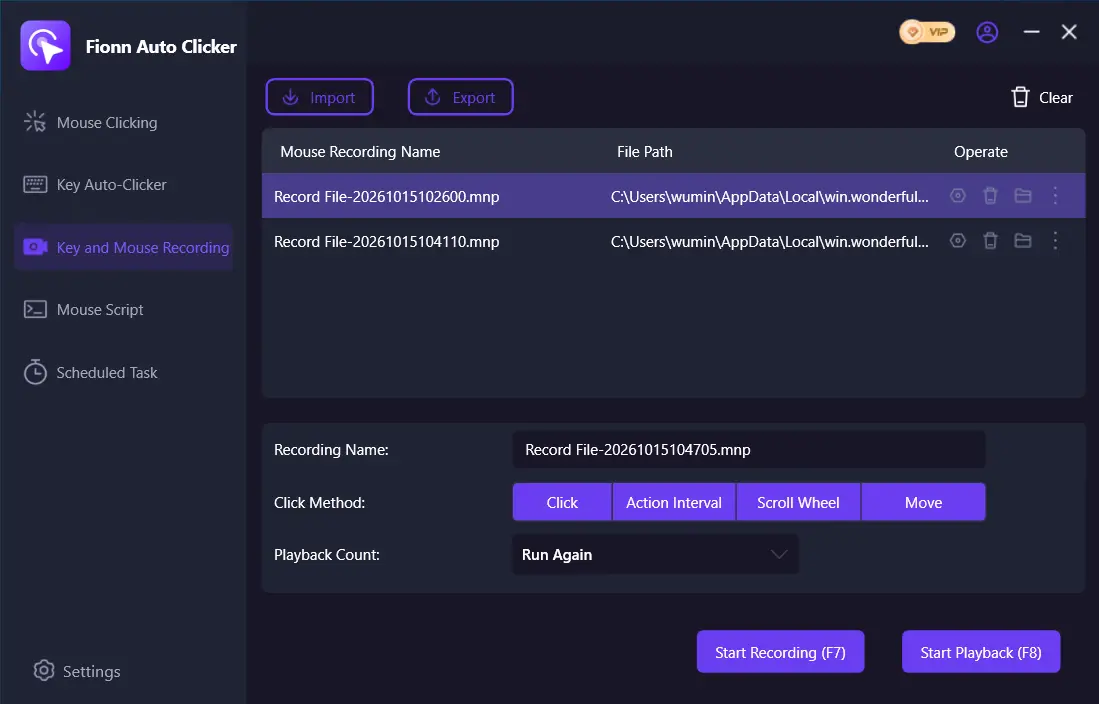
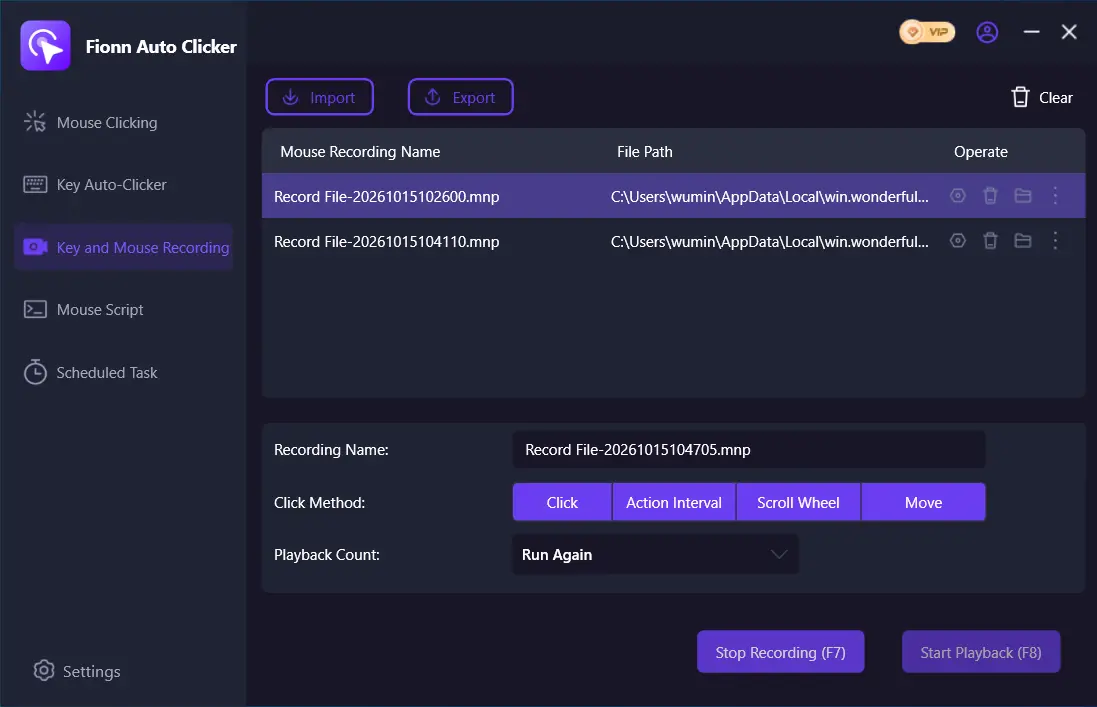
- Perform the actions you want to record. While recording is active, the control changes to
Stop Recording (F7)
.
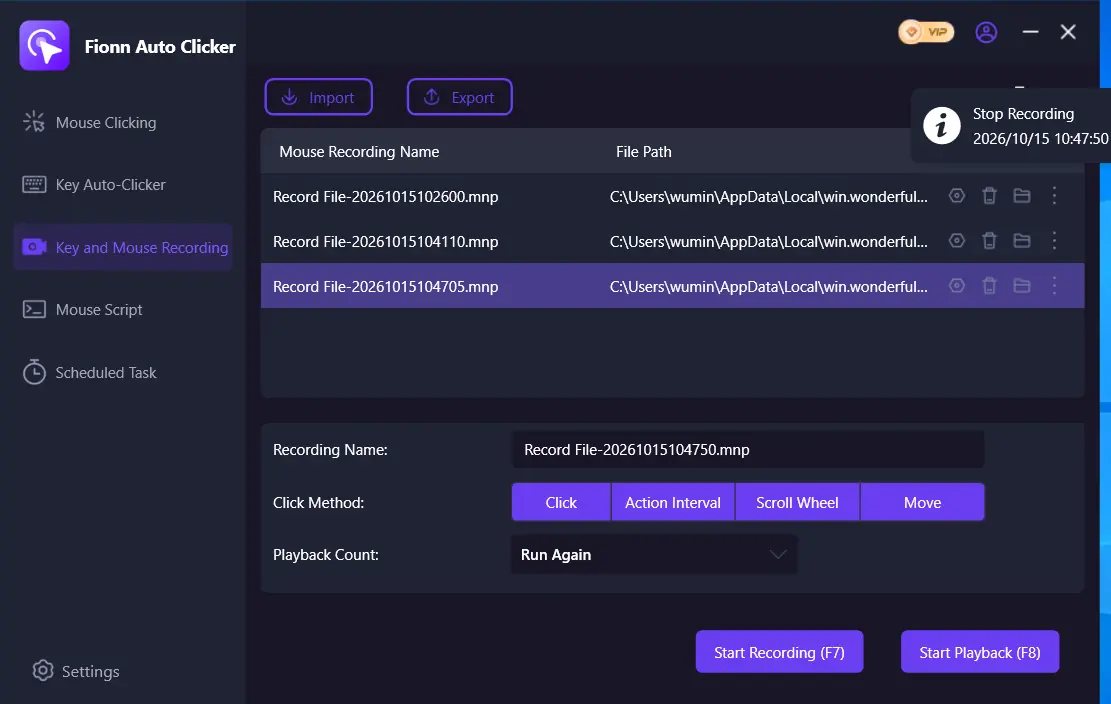
- Select
Stop Recording
or press F7 to finish. Confirm that the new recording appears in the list, then select the recording you want to replay.
- Set Playback Count as needed. For a specified repetition count, choose
Custom Times
and enter a number. Select
Start Playback (F8)
to replay the selected recording; during playback, select
End Replay (F8)
to stop.
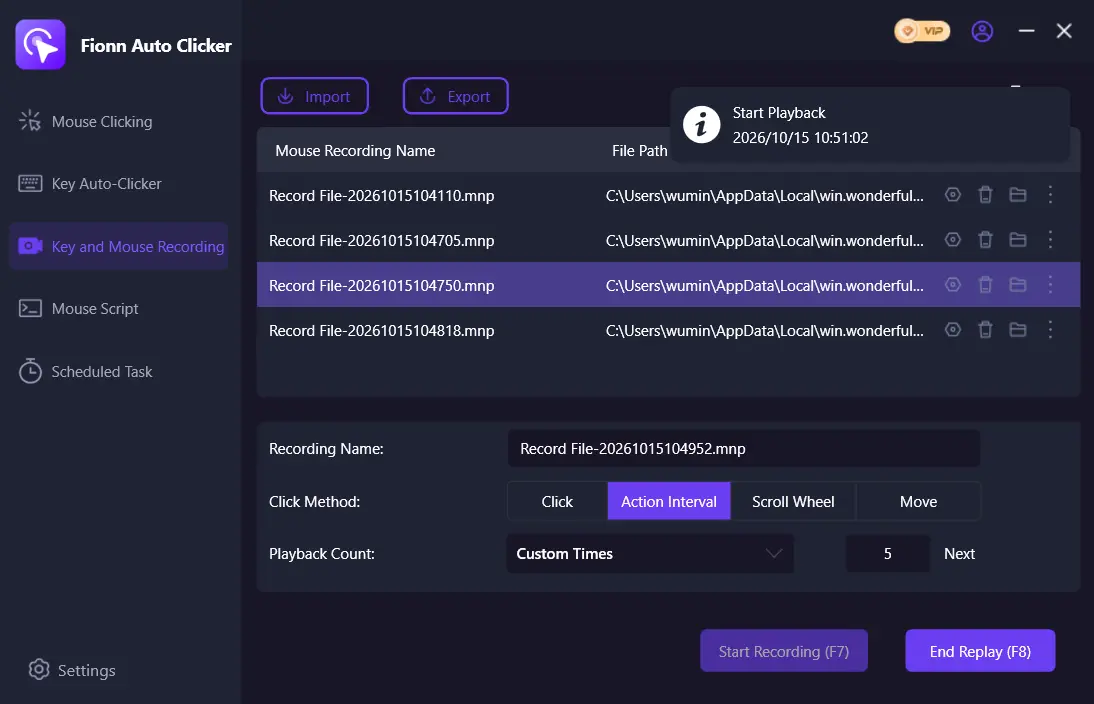
A saved entry in the recording list confirms that the recording was saved. Use the available playback-count setting for the selected recording; choose Custom Times only when you want a specific number of loops.
Run one limited Roblox desktop-client test
This test is for your current local screen and game state only. It does not establish general in-game automation compatibility.
- With the same visible UI state used during recording, perform the harmless sequence physically and note the intended observable result.
- Select the saved recording and replay it once, or use a small Custom Times count if a specified finite count is needed.
- Observe whether the recorded clicks, movement, scrolling, and timing line up with the current UI state and produce the intended visible result.
- Press F8 to end replay if the result differs from what you intended, or when the finite test is complete.
If playback does not match
Stop playback with F8, confirm that the intended saved recording is selected, and compare the current screen with the state used during recording. If the UI, window position, resolution, scaling, window mode, connection, or game state has changed, rerecord the same harmless sequence and repeat the limited test. Do not assume a recording made for one state applies to another.
Conclusion
After confirming that the exact Roblox experience permits automation, Windows users can use Fionn Auto Clicker to capture a short, harmless keyboard-and-mouse sequence, save it, and replay it with an appropriate count. Check one desktop-client run against the intended visible result and use F8 to stop playback whenever needed.
FAQ
Can I use a macro in Plants Vs Brainrots?
Only if the exact experience and applicable service rules permit it. The supplied evidence does not confirm permission for this target, so check its current player-facing rules before recording.
What does F7 do in Fionn Auto Clicker recording?
In Key and Mouse Recording, F7 starts recording. While a recording is active, F7 can also stop it.
What does F8 do during playback?
F8 starts playback of the selected recording. During playback, F8 ends replay.
When should I use Custom Times?
Use Custom Times when you want a specified loop count. For a first check, keep the count small and finite so you can observe the result.
Why might a saved recording need to be rerecorded?
Recorded inputs depend on the captured timing and screen state. If the interface, window, display conditions, connection, or game state changes, rerecord the same harmless sequence and test it again.


