 Emily CarterAuto Clicker
Set Up a Repeated Right-Click Safely
To auto right click in Minecraft, configure a tool to repeat the right mouse button at a chosen position, interval, and repeat count. First, check the rules for the server, Realm, or game mode you plan to use. A clicker being configured does not mean that automated input is allowed or accepted.
For one repeated action, such as using an item on a stationary target, use a Normal Click routine rather than recording a longer macro. Before automating anything, manually right-click a harmless target once and note the visible result you expect.
Choose the Right Click Method
| Method | Use it when | What you configure |
|---|---|---|
| Normal Click | One right-click action needs to repeat | Button, position, interval, and repeat count |
| Recorded playback | A longer keyboard-and-mouse sequence must repeat | Record and replay the complete sequence |
For a single Minecraft right-click, choose Normal Click. Recorded playback is a separate workflow and is only relevant when several actions must be repeated in order.
Use Fionn Auto Clicker for a Repeated Right-Click
Fionn Auto Clicker supports right-click selection, adjustable intervals, repetition settings, and hotkeys on Windows. For this task, use the Normal Click path. It lets you set up one repeated mouse action without recording a longer sequence.
- Normal auto-clicking only:
Open Fionn Auto Clicker and select
Mouse Clicking > Normal Click
. Choose the right mouse button, click method, and click position. Set the click interval and repetition options, then select
Start Auto-Click (F6)
. This is an independent feature; do not use it as a prerequisite for recording.

- Recording and playback only:
Skip Step 1 and open
Key and Mouse Recording
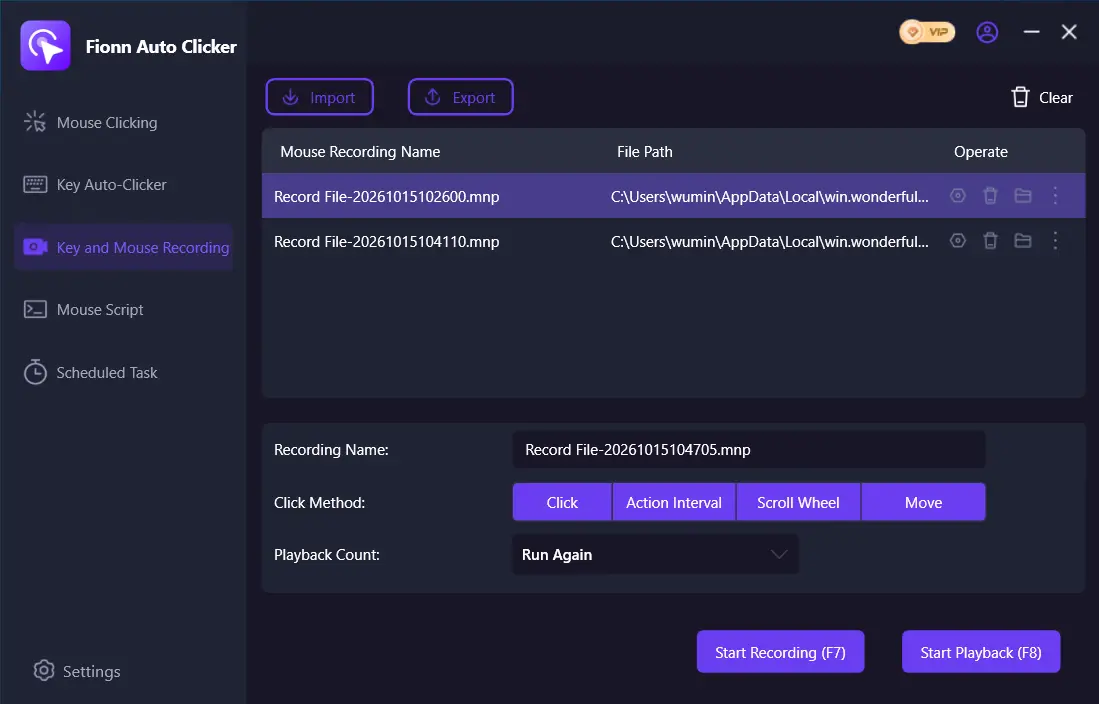
. Enter a recording name, choose the actions to capture—Click, Action Interval, Scroll Wheel, and Move—and select
Start Recording (F7)
.
- Recording and playback only:
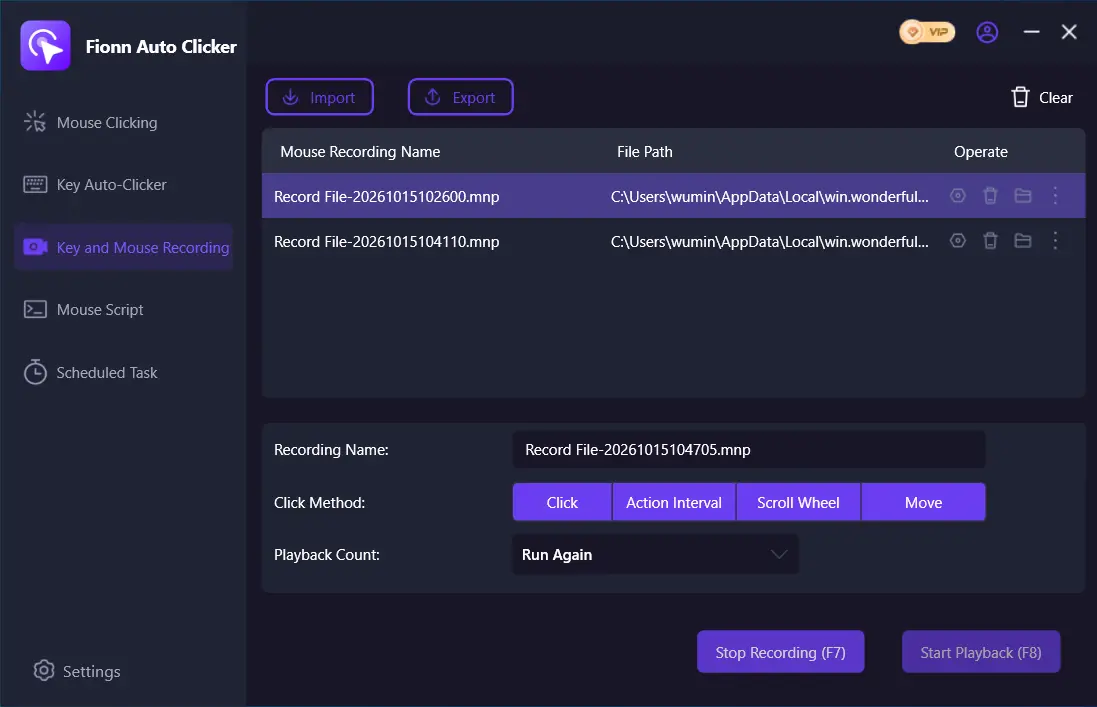
Perform the actions you want to record. While recording is active, the control changes to
Stop Recording (F7)
.
- Recording and playback only:
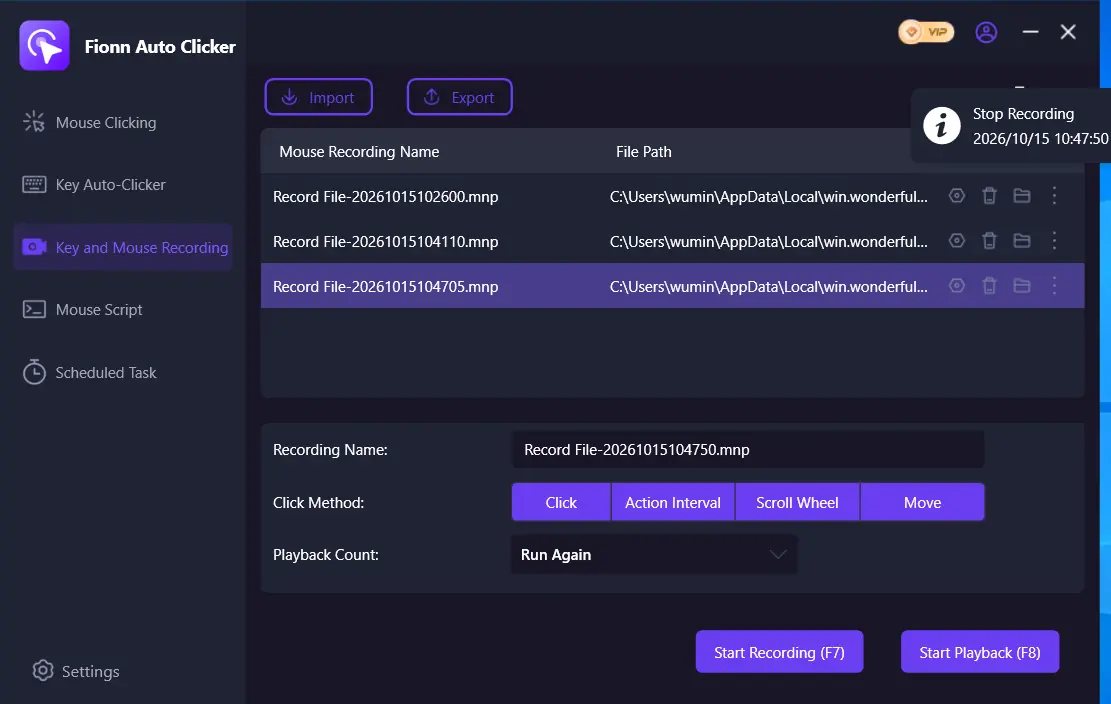
Select
Stop Recording
or press F7. Confirm that the new recording appears in the list, then select the recording to replay.
- Recording and playback only:
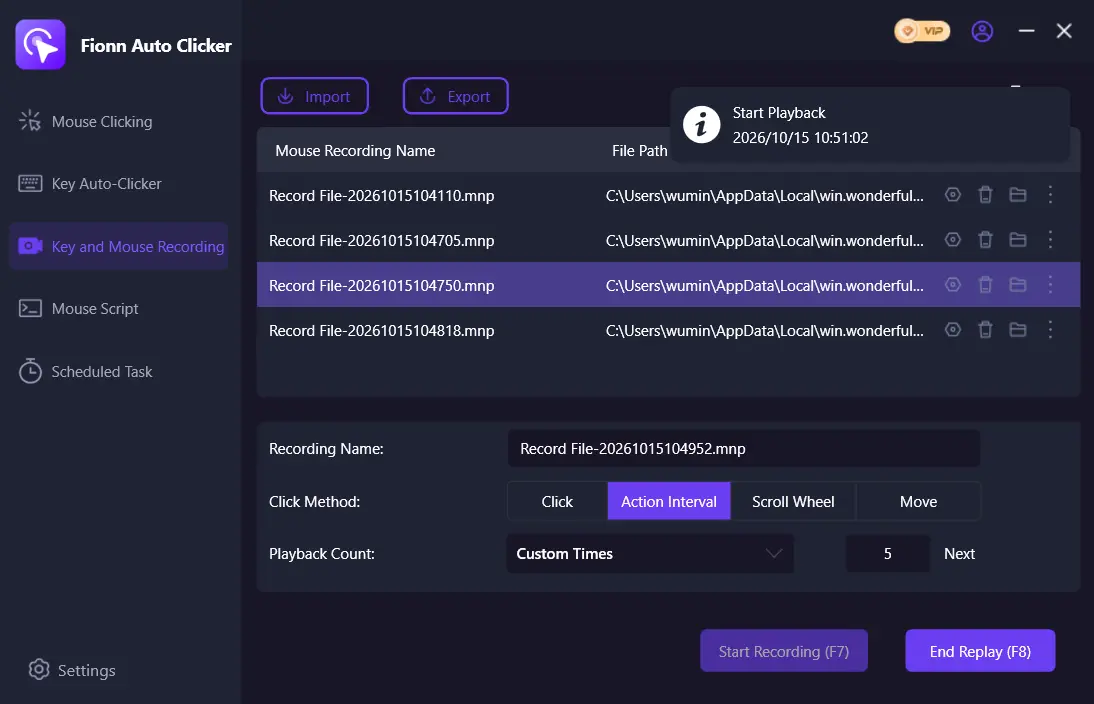
Set the playback count if needed. For a specified count, choose
Custom Times
and enter a number. Select
Start Playback (F8)
; use
End Replay (F8)
to stop playback.
- Normal auto-clicking only:
After confirming the click routine works, select
Stop Clicking
or press F6. Confirm that automatic clicking has stopped before moving the pointer or changing settings.

For Minecraft, use only Steps 1 and 6. The recording steps are not prerequisites for Normal Click.
Run a Small In-Game Test Before Continuous Clicking
A short test confirms the Minecraft result, not merely that the clicker shows as running. This is particularly useful when the target can move or the game handles input differently from your manual click.
- Confirm that automation is allowed for the specific Minecraft context you are using.
- Put Minecraft in the intended screen state, manually right-click the intended safe target once, and observe the visible result.
- Run a small permitted Normal Click test, then stop it with the control or hotkey shown by your installed version.
Success means the same intended visible in-game action repeats during the short test and stops after you stop the routine. It does not establish compatibility with every Minecraft edition, launcher, server, or in-game action. Source: Fionn Auto Clicker Normal Click guide.
If the Right-Click Misses, Does Nothing, or Continues
Stop the routine first. Then recheck the selected right mouse button, click position, interval, and repeat settings. If the target moved after the manual test, verify the position again before another short run.
If the tool appears to run but Minecraft does not respond, compare the actual game result with the earlier manual click. Configuration alone does not prove that the game, server, or current window accepts automated input.
Background clicking may not work with every window. Keep Minecraft in the intended state for the initial bounded test.
Conclusion
Check the applicable rules, manually confirm the target action, configure Normal Click for the right button, and begin with a small repeat count. You have completed the task only when Minecraft shows the same visible action as the manual click and the routine stops when you stop it.
If you need one repeatable mouse action on Windows, try Fionn Auto Clicker 's Normal Click path, then verify the result in your own permitted Minecraft context before increasing the repeat count.
Frequently Asked Questions
Can I auto right click on every Minecraft server?
No. Rules can differ among servers, Realms, and game contexts. Check the rules that apply to your destination before using automation.
Should I start with continuous clicking?
No. Use a small specified repeat count first. Compare its visible result with one manual right-click and confirm that the routine stops.
Why is the click landing in the wrong place?
Stop the routine and recheck the chosen click position. If the target moved after the manual test, verify the position before testing again.
How do I stop the Normal Click routine?
Use Stop Clicking or F6 as shown in the documented workflow, then confirm that clicking has stopped before moving the pointer or changing settings.
Do I need to record a macro for one repeated right-click?
No. Normal Click is the separate workflow for repeating one mouse action. Recording and playback are for a longer keyboard-and-mouse sequence.


