 Emily CarterAuto Clicker
To create a mouse macro without coding, record a sequence of actions, save it, and replay it. Fionn Auto Clicker is designed to automate repetitive clicks and, according to internal product data, records, replays, edits, and exports mouse and keyboard actions. In Windows 11, you can also record a sequence in Power Automate for desktop and get editable flow actions.
How a Macro Differs From an Auto Clicker
A macro replays a sequence, such as moving the pointer, clicking, scrolling, and clicking again. A standard auto clicker repeats one configured click. If you need a sequence of actions, use recording and replay rather than standard clicking mode.
Create a Macro With Fionn Auto Clicker
This method delivers the intended result: a saved recording is selected for replay, then you can start and stop it. The standard auto-clicking mode below is kept separate; it is not required for macro recording.
- For standard auto-clicking only, without recording: open Fionn Auto Clicker and select the mouse-clicking section, then standard clicking. Choose the mouse button, method, and click position, set the interval and repeat settings, then select Start auto-clicking or press F6. To record and replay a macro, skip this step and start with step 2.

- Open the keyboard and mouse recording section. Enter a recording name, select the action types to record—clicks, intervals between actions, scroll wheel movement, and pointer movement—then select Start recording or press F7.
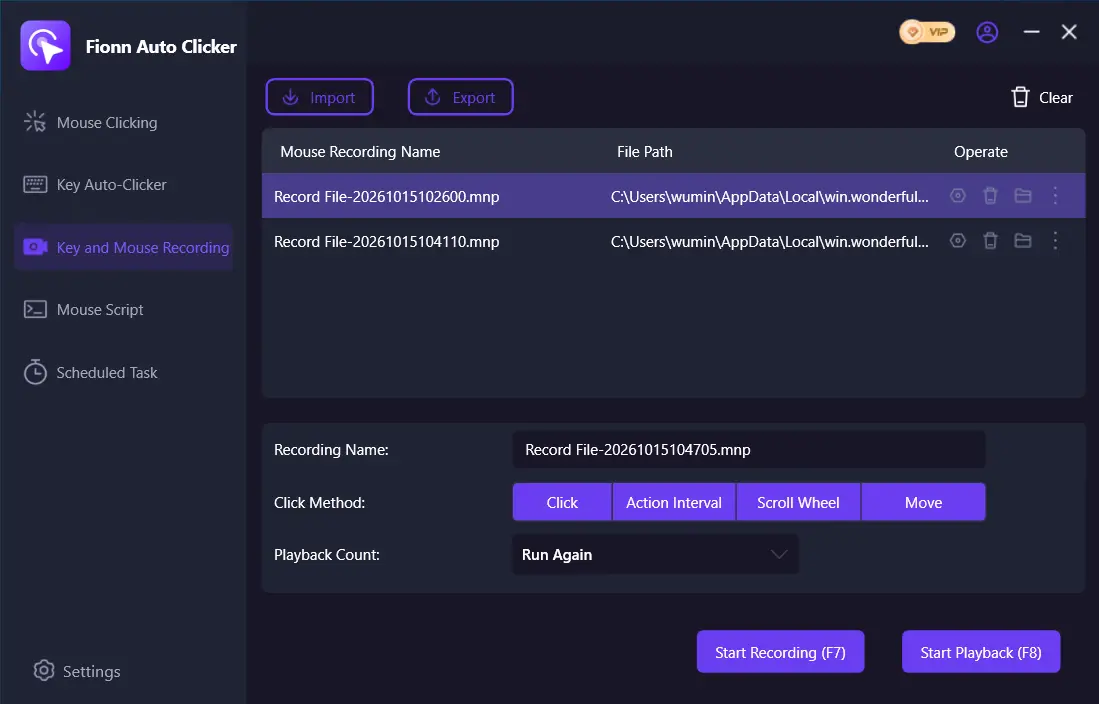
- Perform the actions that the macro should repeat. During recording, the button changes to Stop recording; F7 is also available.
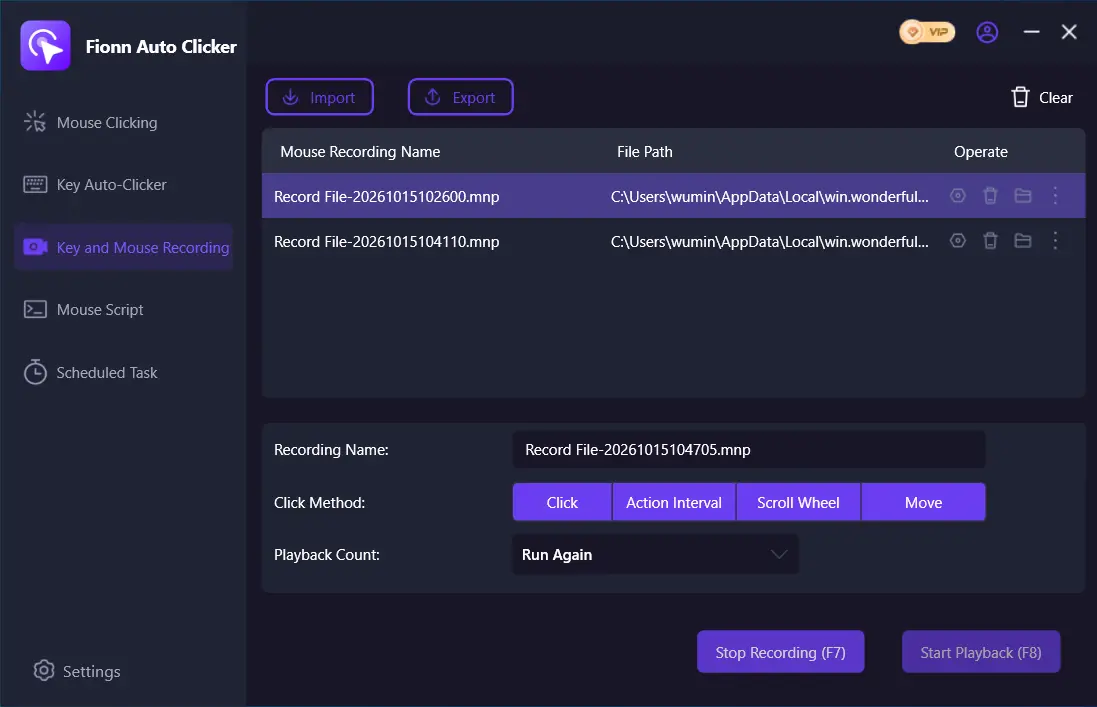
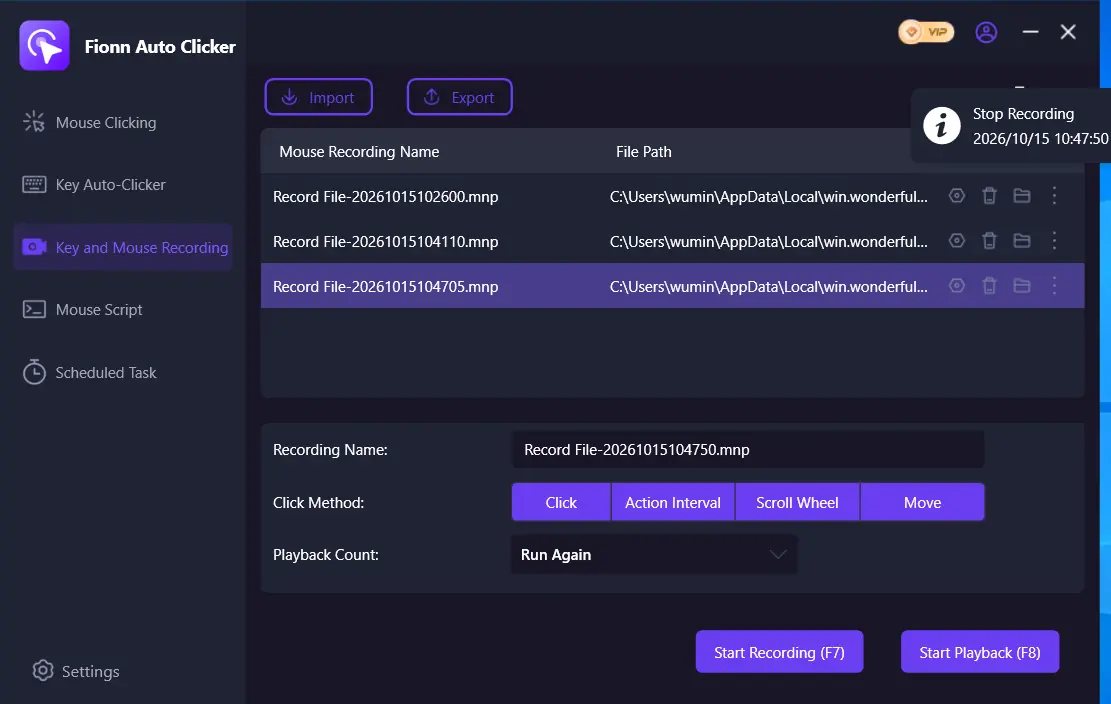
- Select Stop recording or press F7. Confirm that the new recording appears in the list, then select it for replay.
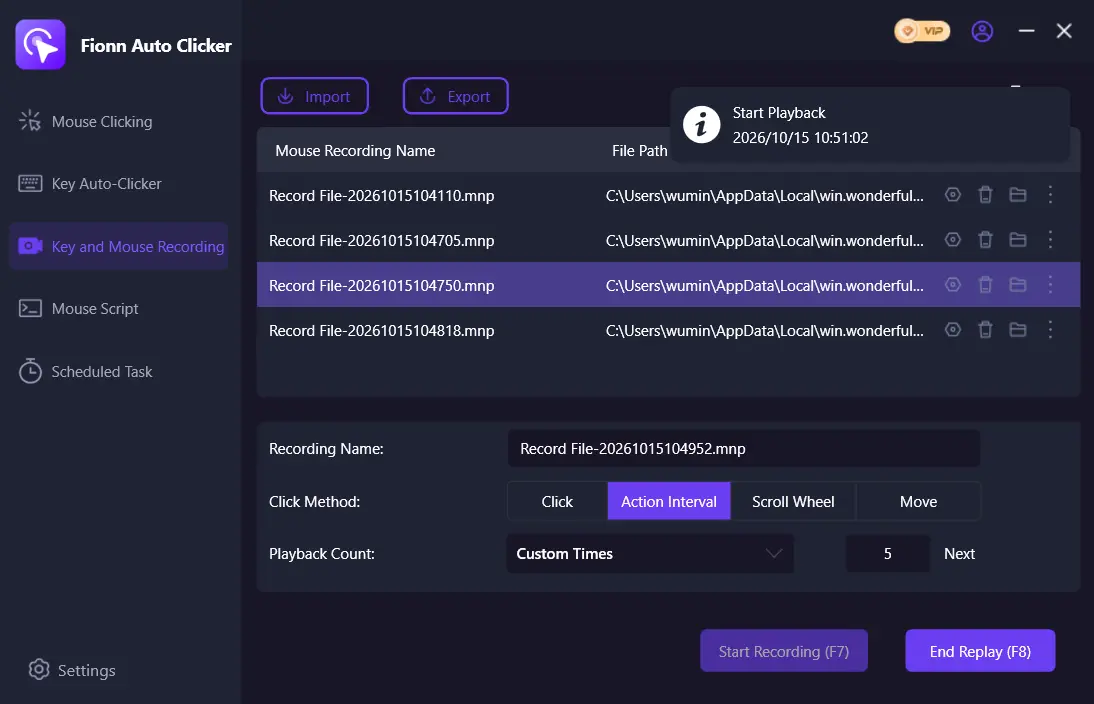
- Set the number of replays if needed. To specify an exact count, choose a custom repeat count and enter a value, then select Start replay or press F8. To stop replay, select End replay or press F8.
- After testing standard auto-clicking, stop it with the Stop clicking button or F6. Before moving the pointer or changing settings, make sure automatic clicking has stopped.

To verify the result, confirm that the recording appears in the list and that starting replay repeats the recorded sequence. Begin with a short, reversible sequence and make sure you know how to stop it before starting.
Record a Flow in Power Automate for Desktop
This is a standalone option for Windows 11 users who need recorded actions as separate editable steps. Microsoft states that the app is preinstalled in Windows 11 and that its recorder captures mouse and keyboard actions separately.
- Create a new desktop flow and select Recorder on the flow designer toolbar.
- Select Record and perform the required actions in an app or on a web page.
- Select Done to convert the recording into flow actions.
- Review the created actions and edit them manually if necessary.
After recording, actions appear in the flow and the UI elements used are added to the UI elements pane. Procedure: official Microsoft documentation. The provided procedure does not describe starting or stopping a recorded flow, so this section should not be considered instructions for replaying it.
With image-based recording, a click during playback may land in the wrong location. To interact with an application running with elevated permissions, Power Automate must run with the same or higher permissions.

Verify the Result
For Fionn Auto Clicker, verification is the appearance of a new recording in the list and observable replay of the selected sequence after starting it. For Power Automate, verification of the documented stage is the appearance of created actions and UI elements in the designer; this confirms recording, but does not confirm flow execution.
Conclusion
To create a macro without code in Fionn Auto Clicker, record the actions, stop recording, select it from the list, and start replay. Set the repeat count if needed. Power Automate for desktop is useful in Windows 11 when you need to review or manually modify individual flow actions after recording.
Frequently Asked Questions
Can I create a mouse-only macro?
Yes. Fionn Auto Clicker provides clicks, intervals, scrolling, and pointer movement for recording. Perform only the actions that should repeat while recording.
How does a macro differ from a standard auto clicker?
A macro replays a sequence of different actions. A standard auto clicker repeats a configured click; in Fionn Auto Clicker, this is a separate mode.
Can I edit actions after recording?
Yes. Actions created by the Power Automate for desktop recorder can be edited manually. Internal Fionn Auto Clicker data also states that recorded actions can be edited.
Why might a Power Automate flow click in the wrong place?
Microsoft warns that with image-based recording, a click during playback may land in the wrong location. This limitation applies to that type of recording.
What is required to click in an application with elevated permissions?
For the send-click action in Power Automate for desktop, run Power Automate with the same or higher permissions than the target application.


