

How to Record Your Screen on Windows Using Fionn Screen Rec | Full Beginner-to-Advanced Guide
2025-11-28 11:54:03

Online conference screen recording tips: clear image quality + synchronized audio solution
2025-08-13 14:55:35

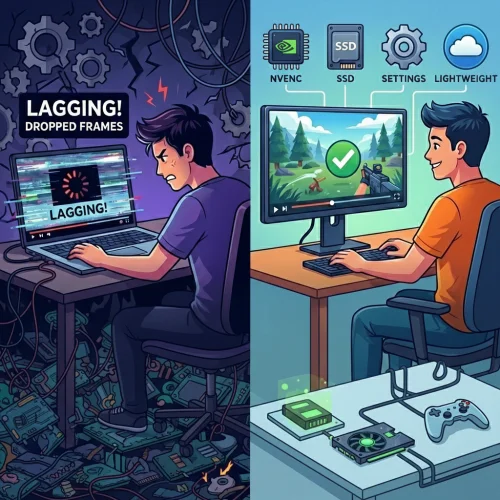
How to Record High-FPS Gameplay Smoothly: Tools & Settings Explained
2025-08-07 16:09:39
2025-11-28 11:54:03
Whether you’re creating tutorials, recording meetings, capturing gameplay, or making training videos, this guide will walk you through everything you need to know about using Fionn Screen Rec, a professional-grade Windows screen recorder.
Based on real hands-on experience, this article covers all recording modes, audio options, encoding settings, webcam overlays, drawing tools, file recovery, basic editing, and performance tips - so you can start recording confidently in minutes.
1. What Can Fionn Screen Rec Do? (Full Feature Overview)
Screen Rec is built to handle everything from simple screen capture to high-performance 4K gameplay recording. Here’s what it supports:
Recording Modes
Audio Options
Export Formats
MP4, MKV, AVI, MOV, FLV, TS - all directly supported in Screen Rec.

Video Settings & Encoding

Annotation Tools (During Recording)

Recording Management

2. Quick Start: Your First Recording (3 Simple Steps)
Step 1 - Choose Your Recording Mode
Launch Screen Rec, then select:
For tutorials, Custom Region in Screen Rec is often the most efficient and privacy-friendly option.
Step 2 - Configure Your Audio in Screen Rec
Choose your audio source:
Adjust volumes individually to avoid background noise overpowering your voice.
Step 3 - Start Recording (or Use Hotkeys)
Click Start in Screen Rec, or use keyboard shortcuts
While recording, you can:
3. Advanced Settings: Getting the Best Quality in Screen Rec
Recording Engine: GDI vs DXGI
Choosing the Right Encoder in Screen Rec
Frame Rate Selection
4. Using Webcam Overlay (Picture-in-Picture)
Enabling your webcam adds a personal, expressive element to your videos.
You can:
Perfect for:
5. Drawing & Annotation Tools (Perfect for Tutorials)
While recording, open the annotation toolbar to add:
These tools help make your demonstrations clearer and more engaging - great for teachers, trainers, and content creators.
6. Built-in Editing: Quickly Trim Your Videos
After recording, open the built-in editor to:
Useful for:
7. What If Your Recording Stops Unexpectedly? (Recovery Feature)
If your recording unexpectedly stops or you accidentally close the program, don’t panic.
You can recover unfinished recordings in the Media Library.
This has saved countless users from losing long meetings or tutorial sessions.
8. Recommended Settings by Scenario
| Use Case | Recommended Setup |
|---|---|
| Online Meetings | Full Screen + System Audio + DXGI |
| Tutorials/Courses | Region Recording + System+Mic + Annotation Tools |
| Gameplay Recording | Full Screen + NVENC/QSV + 60/120 FPS |
| Software Demos | Window Recording + Webcam Overlay |
| Recording Online Videos | Region Recording + System Audio |
9. Final Thoughts: Why Choose Fionn Screen Rec?
With Screen Rec, you get professional recording features, flexible modes, dual-audio control, webcam overlay, built-in annotation, lightweight performance, and multi-format export. It’s like OBS or Camtasia but much easier to use. Perfect for students, teachers, content creators, gamers, and office users alike.
Whether you’re a student, teacher, gamer, content creator, professional trainer, or office user, Screen Rec helps you record high-quality videos with ease.